> ## Documentation Index
> Fetch the complete documentation index at: https://docs.wavix.com/llms.txt
> Use this file to discover all available pages before exploring further.
# Set up and configure a 2FA service
> A step-by-step guide to creating and managing 2FA services in the Wavix portal.
Before you can send authentication codes, you must create a **2FA Service**. This service stores your configuration, such as delivery channels and password length.
## Prerequisites
Before creating a service, ensure you have:
* A [Wavix account](https://wavix.com/sign-up).
* Your [API key](/api-reference/authentication#get-your-api-key).
## How to create a 2FA service
Follow these steps to configure your 2FA service in the Wavix portal:
1. Go to **Solutions** → **2FA**.
2. Select **Create new**.
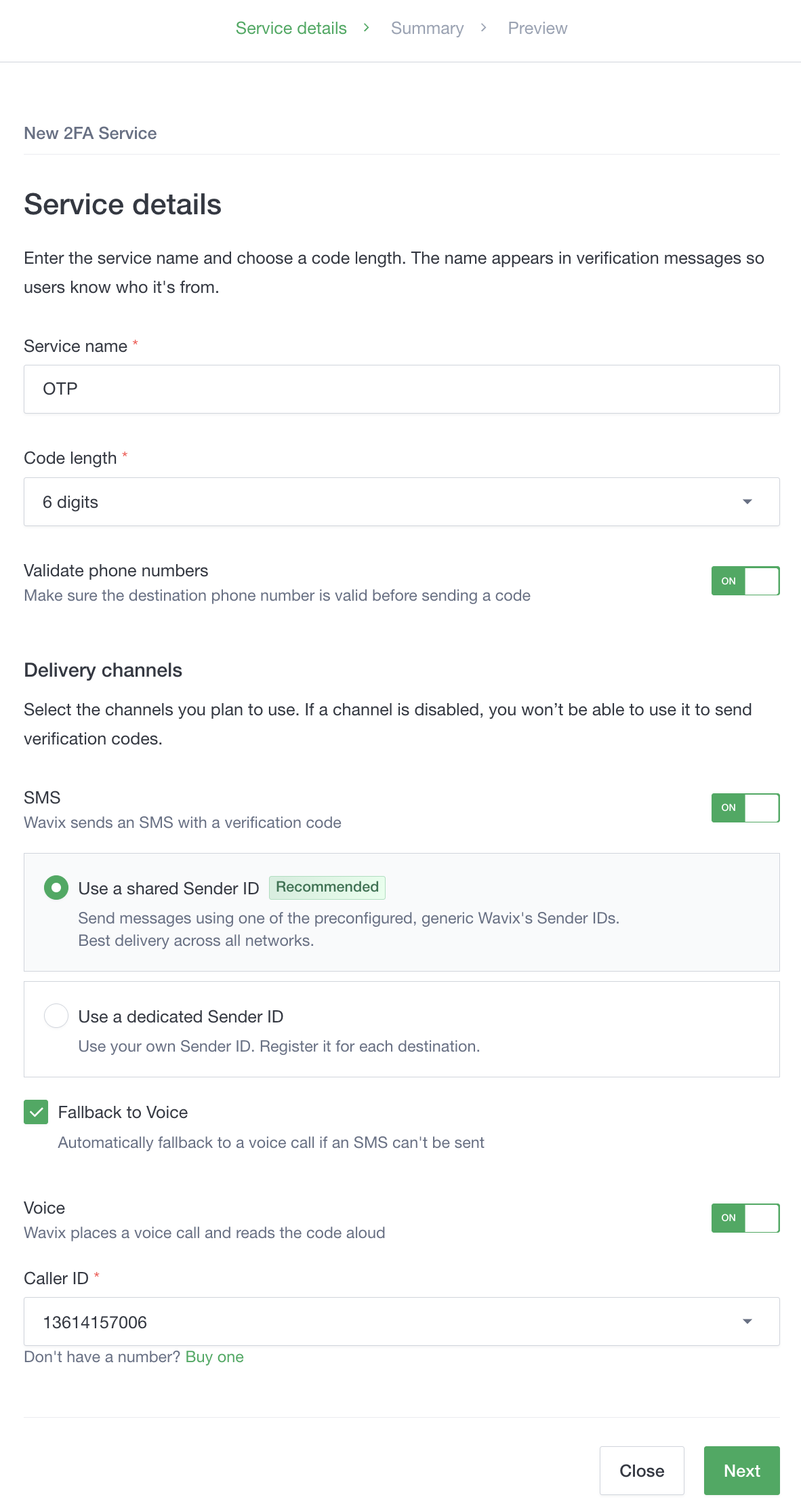
**Service details**\
Enter a name and code length. The service name appears in messages so users recognize your brand. We recommend enabling **Validate phone numbers** to verify destination numbers before codes are sent.
**Delivery channels**\
Enable **SMS**, **Voice**, or both. For SMS, you can use a **Shared Sender ID** for instant setup or a **Dedicated Sender ID** (requires per-country registration). You can also enable **Fallback to Voice** for improved delivery.
If using Voice, select a **Caller ID** from your account.
Select **Next**.
1. Review settings on the **Summary** page.
2. Select **Save and close** or **Save and preview** to test the service immediately.
To fallback to voice calls when SMS delivery fails, you must enable **Channel failover** and select **Voice** as a delivery channel.
 Once created, you can copy the **Service ID** from the list of services. You'll need this ID to send and verify OTPs in your [API implementation](/messaging/2fa-integration).