

Prerequisites
- A Wavix account on the Flex Pro account level. See Go live.
- Your API key.
- A phone number on your account. See Buy a number.
- A SIP trunk that uses Digest authentication with a strong password. See Create a SIP trunk.
How it works
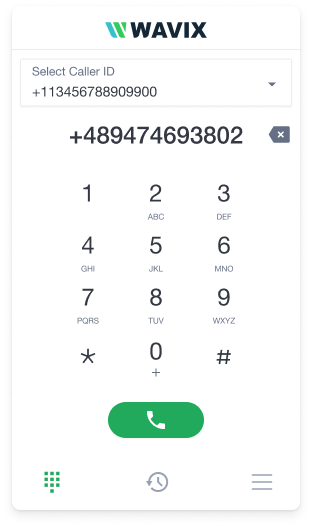
The widget loads from a script that Wavix hosts. It signs in with a short-lived widget token tied to your SIP trunk: you create the token on your server, then start the widget in the browser. You can embed it inline on the page, or open it in a separate window.Step 1: Generate a widget token
Create the token on your server so your API key never reaches the browser.cURL
sip_trunk: the ID of the SIP trunk the widget connects through.payload: optional custom data to store with the token. It’s returned when you look the token up.ttl: token lifetime, in seconds. The widget disconnects when the token expires.
HTTP 201 Created status code:
token value as WIDGET_TOKEN in the next step.
Step 2: Embed the widget
Load the widget script and start it. Forsip.server, use the SIP gateway with the lowest ping from your users (find the gateway list on the Numbers & trunks page in the Wavix portal). Replace WIDGET_TOKEN with the token from Step 1.
- Inline (single-page app)
- Dialog window
Add the script to your page’s Add a container element where the widget should appear:
<head>:Step 3: Enable inbound calls
Outbound calls work as soon as you embed the widget. Inbound calls reach the widget only if the number the customer dials is routed to the widget’s SIP trunk. If the number has no destination, or points to a different trunk, it won’t ring the widget, even though the widget loads and signs in correctly. In the Wavix portal, go to Numbers & trunks, open the number, and set its destination to the SIP trunk your widget token uses. You can also set the destination with the API. See Update number destination.Configuration options
Pass these in theinit object.
Customize the appearance
Override the widget’s CSS variables under the#webrtc-widget selector.
Example: dark theme
Example: dark theme
Manage tokens
You can manage widget tokens through the API:- List active tokens, or get a token by its ID.
- Update a token’s
payload. The new payload replaces the old one. - Delete a token. The widget using it disconnects right away.
Troubleshooting
The incoming-call screen appears, but answering fails. The call shows the answer buttons, then either throws a JavaScript error (such asCannot read properties of null (reading 'invite')) or connects for about a second and drops with no audio.
This almost always means the dialed number isn’t routed to the widget’s SIP trunk. Set the number’s destination to that trunk, as shown in Enable inbound calls.