

Create a SIP trunk in the Wavix portal
To purchase or configure a new SIP trunk:- Sign in to your Wavix account.
- In the top menu, click on Numbers & Trunks → Trunks.
- Click Create new.
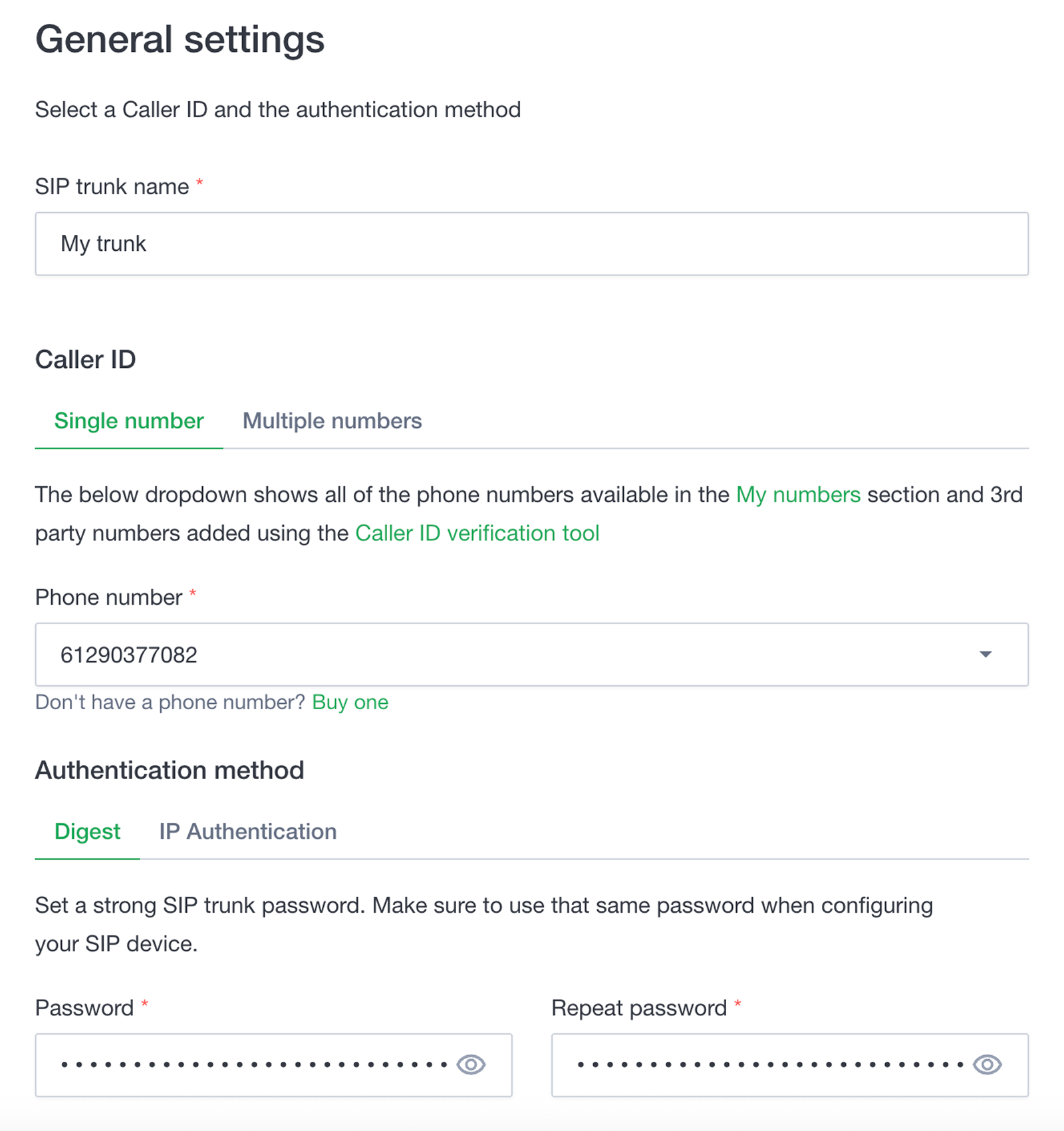
- Under Authentication Method, select Digest (for username/password authentication) or IP Authentication (if you have a dedicated static IP).
- Enter a SIP trunk name, set a SIP trunk password (for Digest only), and choose one of your numbers as the Caller ID.
- (Optional) Configure additional limits. If not specified, global account limits apply:
- Max outbound call duration
- Max number of simultaneous calls via the SIP trunk
- Max call cost
- (Optional) Under Trunk features, enable functionality like Call recording, Call transcription, or Voicemail detection (AMD).
- Click Save and close (or Next to configure advanced options).
Your 5-digit SIP trunk username is generated automatically and shown in the SIP trunk ID column.