

Prerequisites
Before you begin, ensure you have:- An active phone number on your Wavix account. If you need to purchase one, see our guide on how to buy a phone number.
- A SIP trunk (How to create a SIP trunk).
Configure a SIP trunk in FreePBX
For this guide, we will usenl.wavix.net as the primary SIP gateway.
Choose the primary gateway with the lowest ping from your location. A full list of Wavix regional gateways is available at the bottom of the page: https://app.wavix.com/trunks
- Sign in to your FreePBX instance.
- In the top menu, go to Connectivity → Trunks.
- Click Add trunk and select Add SIP (chan_pjsip) Trunk.
-
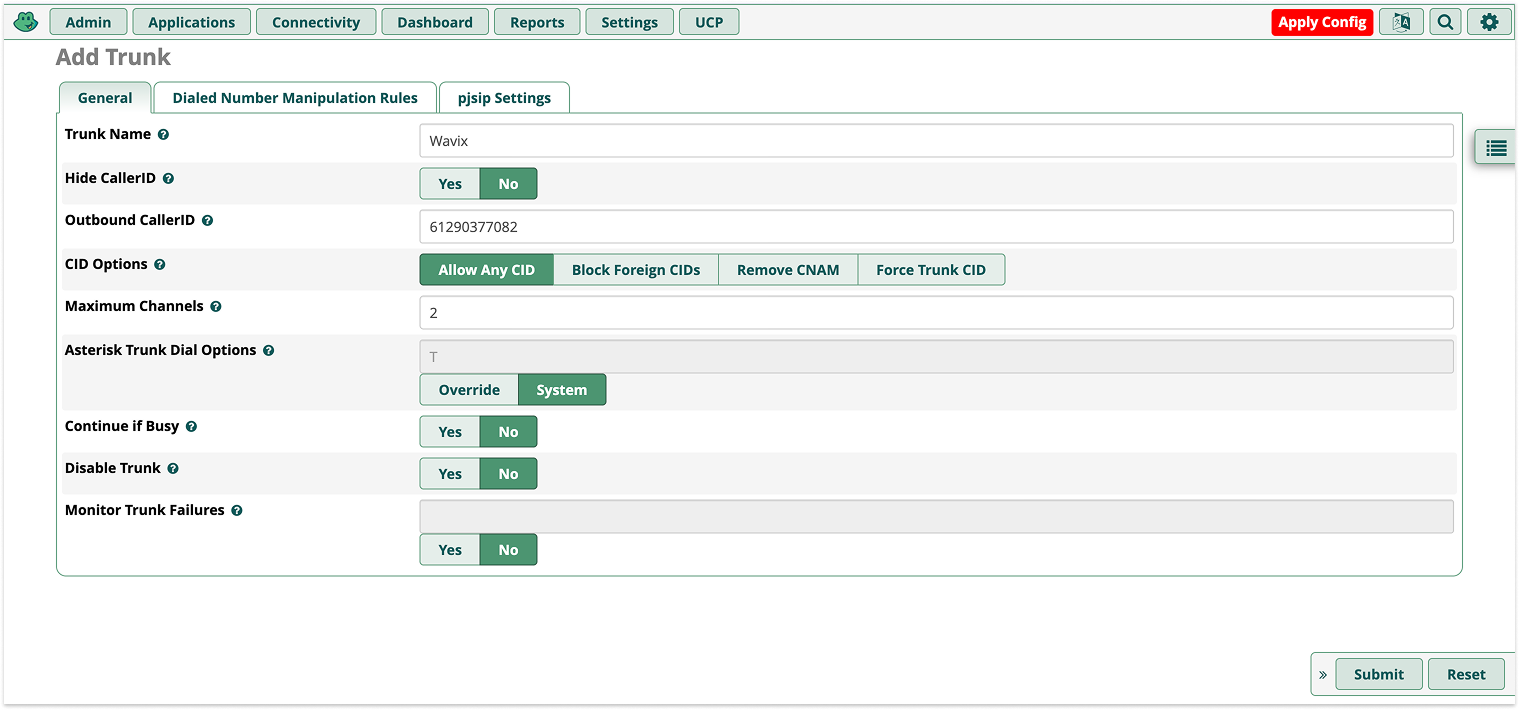
Enter a Trunk Name, set an Outbound CallerID, and specify Maximum Channels:
- Trunk Name - the name of your FreePBX SIP trunk.
- Outbound CallerID should be an active or verified phone number from your Wavix account.
- Maximum Channels limit the maximum number of concurrent calls for this trunk.
-
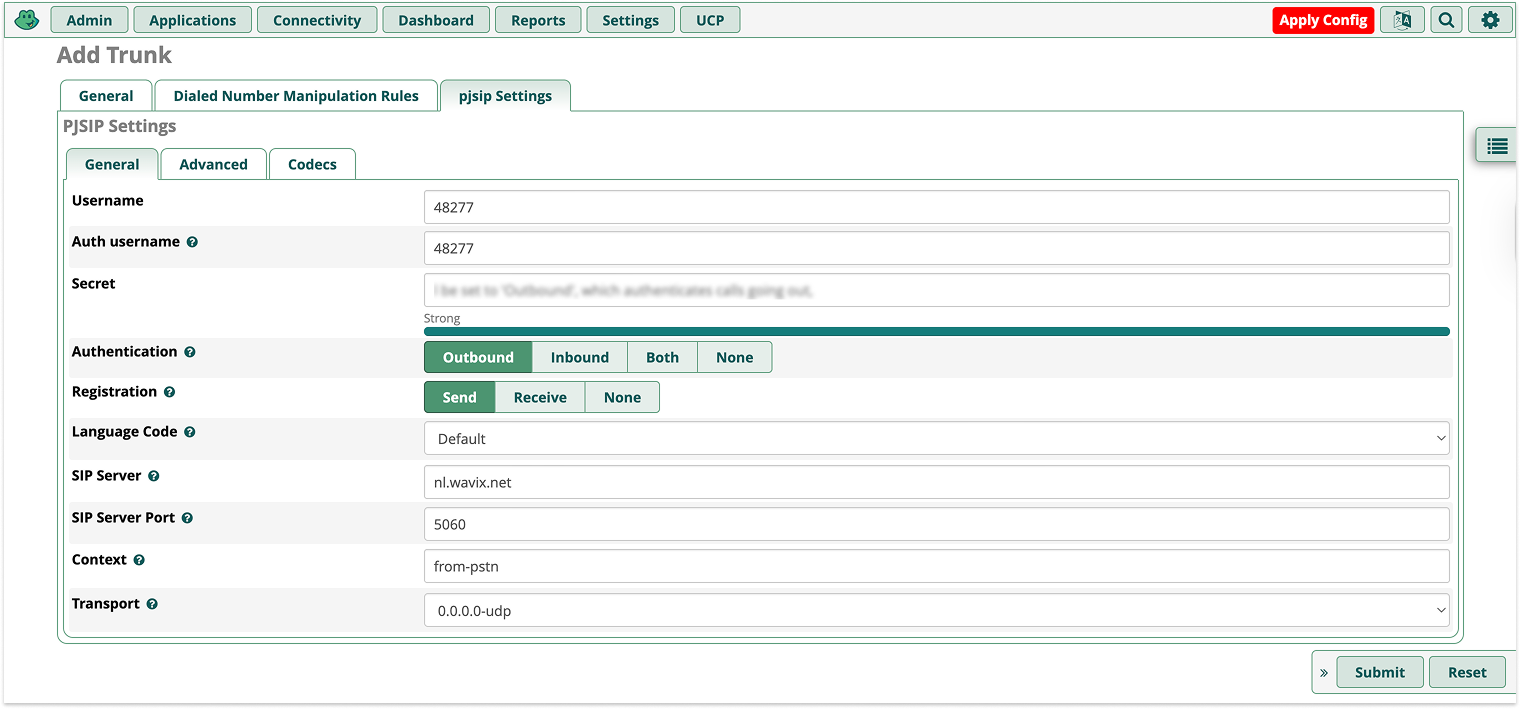
Navigate to pjsip Settings and open the General tab:
- Username and Auth username should contain a 5-digit Wavix SIP trunk username.
- Secret: Your Wavix SIP trunk password.
- SIP server: Wavix regional SIP gateway with the lowest ping from your location.
- Port: Set to 5060.
- Keep the default values for all other parameters.
-
Click Submit.
Enable IP Authentication
You may wish to enable IP Authentication on Wavix SIP trunks. When IP Authentication is enabled, Wavix will accept all calls originating from a specified IP address without requiring login credentials.You must have a dedicated IP for this option to work correctly.
Activate IP Auth on Wavix SIP trunk
To enable IP Authentication on your Wavix SIP trunk:- Create new or open an existing Wavix SIP trunk settings.
- Under Authentication Method, select IP Authentication.
- Enter a public static IP address of your FreePBX and click Submit.
- Click Save to apply the changes.
- When IP Authentication is enabled, the SIP trunk cannot be used as a destination for a DID (phone number). You must use a SIP URI instead.
- By default, an IP address can only be mapped to a single SIP trunk. If you need several Wavix SIP trunks sharing the same IP address, please contact support@wavix.com.
Activate IP Auth in FreePBX
To enable IP Authentication on your FreePBX SIP trunk:- Create new or open an existing FreePBX SIP trunk settings.
- Navigate to pjsip Settings and open the General tab:
- Set Authentication to None.
- Set Registration to None.
- Make sure SIP server contains a domain name of Wavix’s SIP proxy with the lowest ping from your premises.
- Click Submit to apply the changes.
Configure outbound calls in FreePBX
To configure outbound calls:- In the top menu, go to Connectivity → Outbound Routes.
-
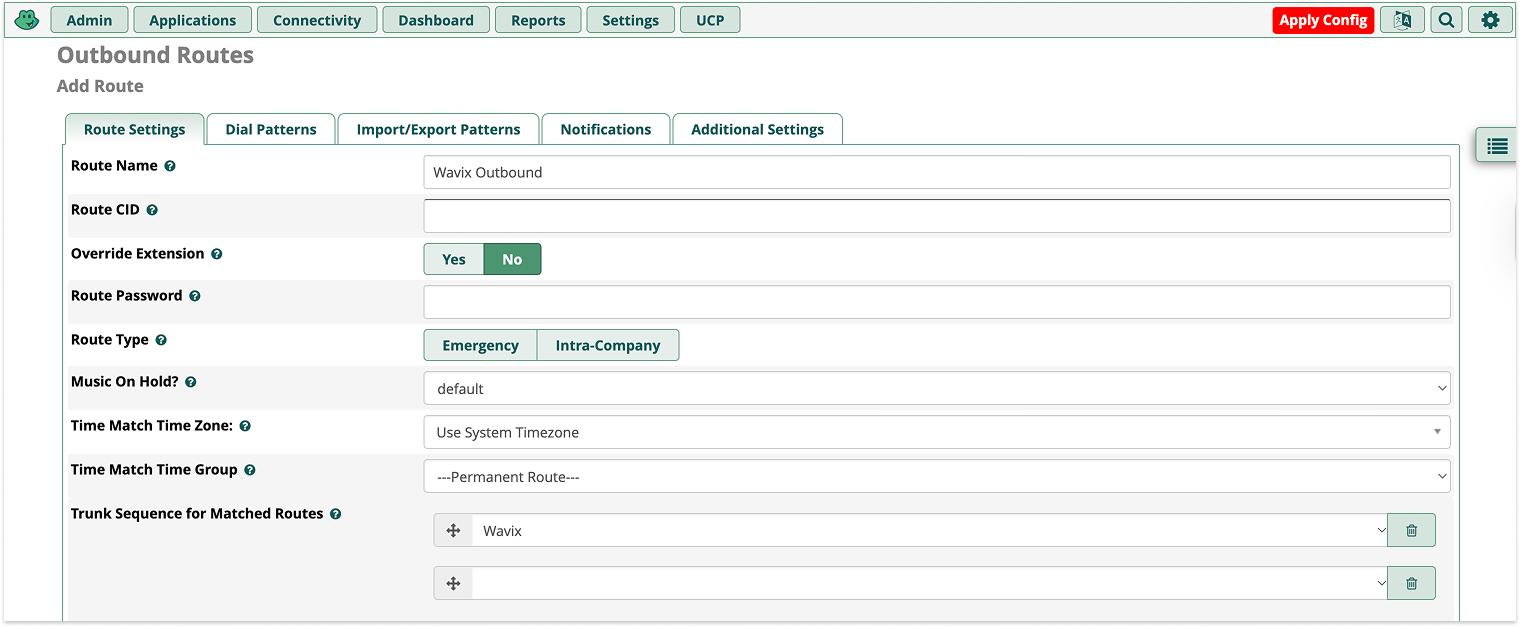
Select Add Outbound Route:
- Specify the Route Name.
- Select the Wavix trunk in the Trunk Sequence for Matched Routes.
-
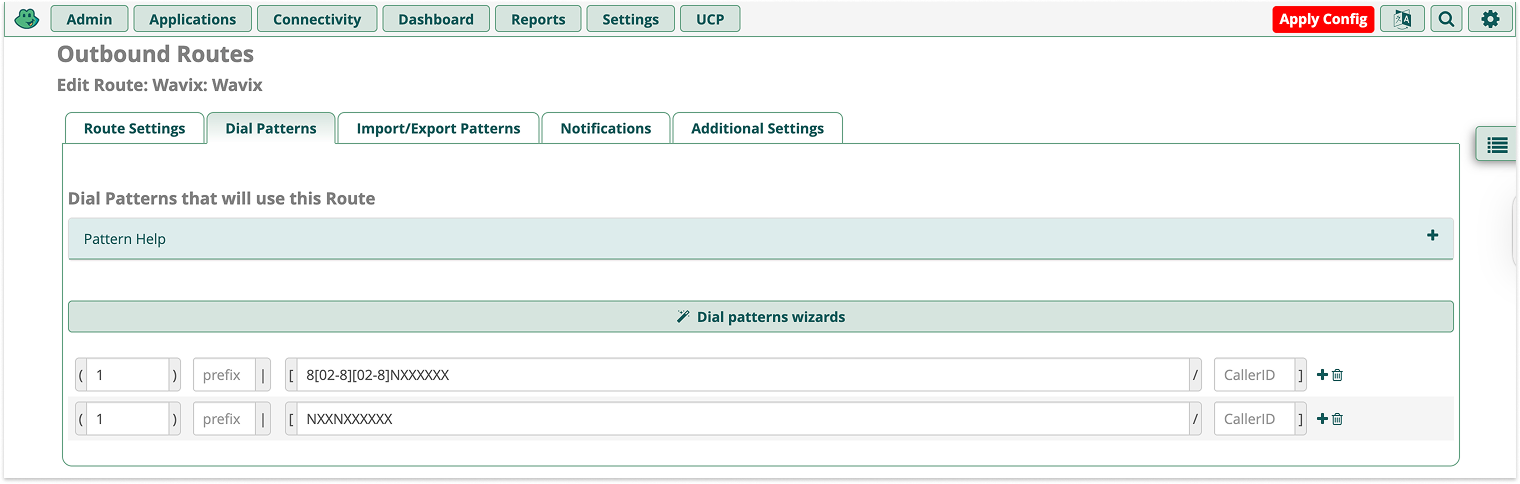
Select Dial Patterns and define the rules for routing calls to the Wavix trunk. If the dialed number matches one of these patterns, no other routes are checked.
Configure inbound calls
Configure inbound calls on Wavix
If you have enabled IP authentication for your SIP trunk, scroll down to the Configure inbound call routing for trunks with IP authentication section.- Sign in to your Wavix account.
- In the top menu, go to Numbers & Trunks → My numbers.
- Click on the three dots next to the number you want to edit (right-hand side) and select Edit number.
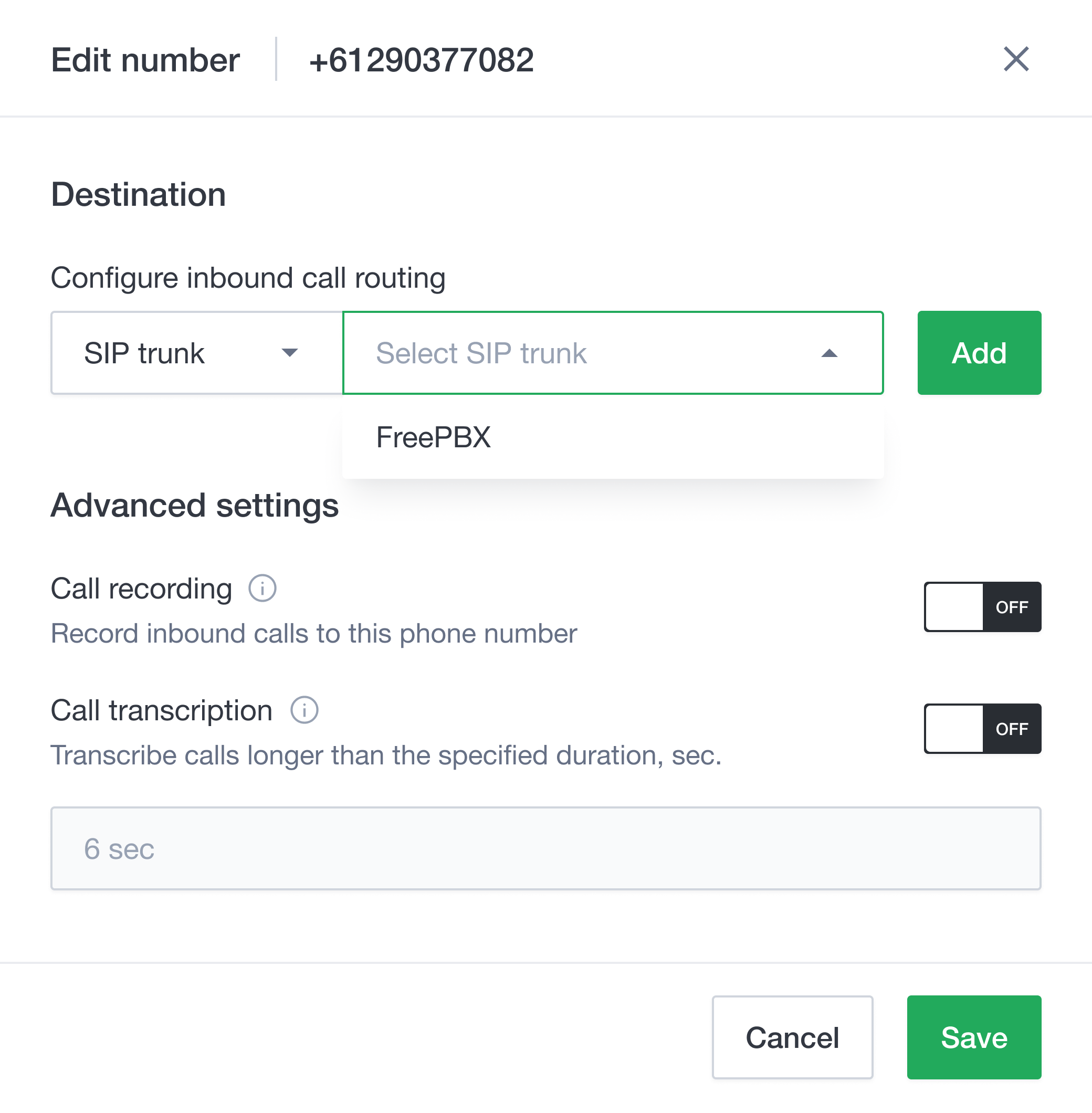
- Select the destination trunk in the Destination section.
- Click Add to add the destination for the phone number.
- Click Save to apply the settings.
Configure inbound call routing for trunks with IP authentication
Skip this section if your trunks are configured to use digest authentication. To configure inbound call routing to a valid SIP URI:- Log in to your Wavix account
- Navigate to My numbers under the Numbers & trunks in the top menu
- Click on the three dots next to the number you want to edit (right-hand side) and select Edit number
- Select SIP URI in the Transport drop-down menu
- Enter a valid SIP URI in the following format:
+[did]@FQDN:port;transport=connection, where:- a. FQDN is the fully qualified domain name or IP address of your Asterisk PBX
- b. Port is the SIP port used by the PBX
- c. A connection can be udp, tcp, or tls, with udp as the default transport
- Click Add to set the destination for the phone number
- Click Save to apply the settings
The
[did] parameter will be automatically updated with the actual dialed phone number when routing the call.Configure inbound calls in FreePBX
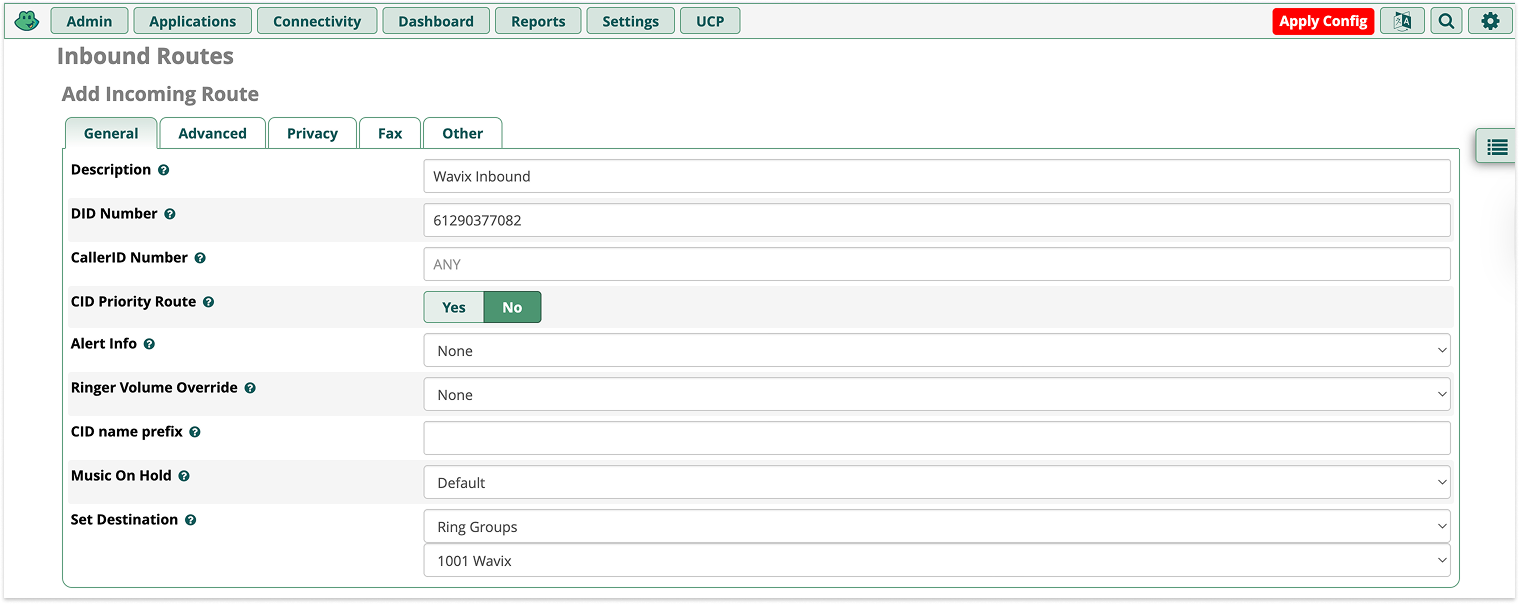
To configure inbound call routing:- Sign in to your FreePBX instance.
- In the top menu, go to Connectivity → Inbound Routes.
- Select Add Inbound Route:
- Specify the route Description
- Set the DID Number, if needed
- In Set Destination, choose where to route inbound calls from the Wavix trunk. This can be an IVR, extension, agent queue, or another destination.
- Select Submit to apply changes.
Troubleshooting outbound calls
- 603 Declined response might be received when calling the destination with the per-minute rate higher than the Max call rate set for your account. You can find your effective Max call rate on the Trunks page. Please contact support@wavix.com to request a change to your Max call rate.
- The destination phone number is in an incorrect format. Please make sure the number is dialed in the international E.164 format. Strip prefixes like 0, 00, or 011 before the dialed number if needed.