

Prerequisites
- A Wavix account with funds. Sandbox accounts can’t create broadcasts.
- A Sender ID approved for the destination country. To register one, see Send SMS.
- To send to US numbers, a 10DLC campaign.
- A contacts file in the format described in Contacts file.
Step 1: Create an SMS template
Every SMS broadcast uses an approved SMS template. We review each template before you can use it.- In the Wavix portal, go to Solutions → Broadcasts.
- Select the Templates tab.
- Select Create new.
1
General
Enter the template name and select the destination country. You need at least one Sender ID registered for that country.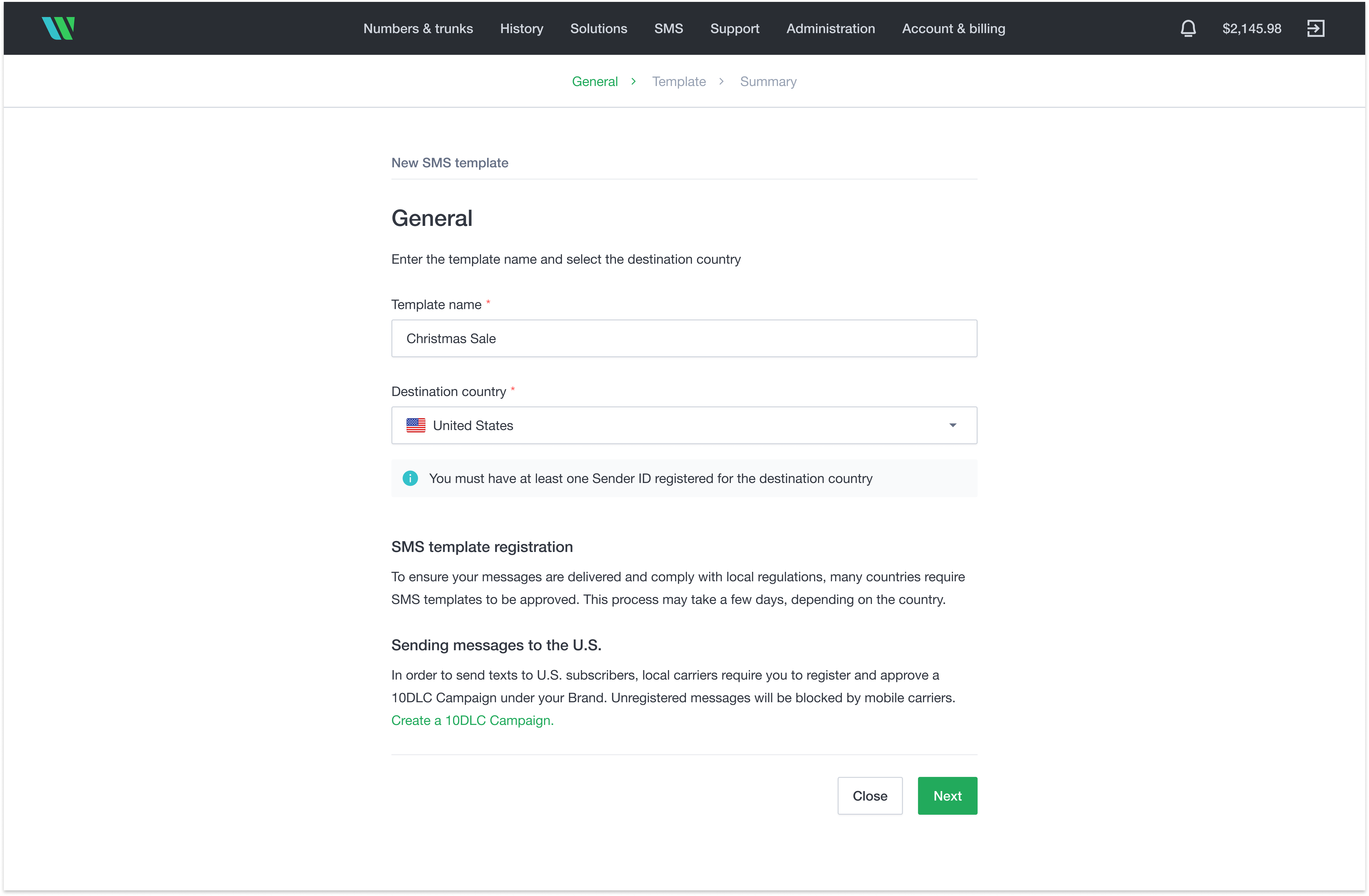
2
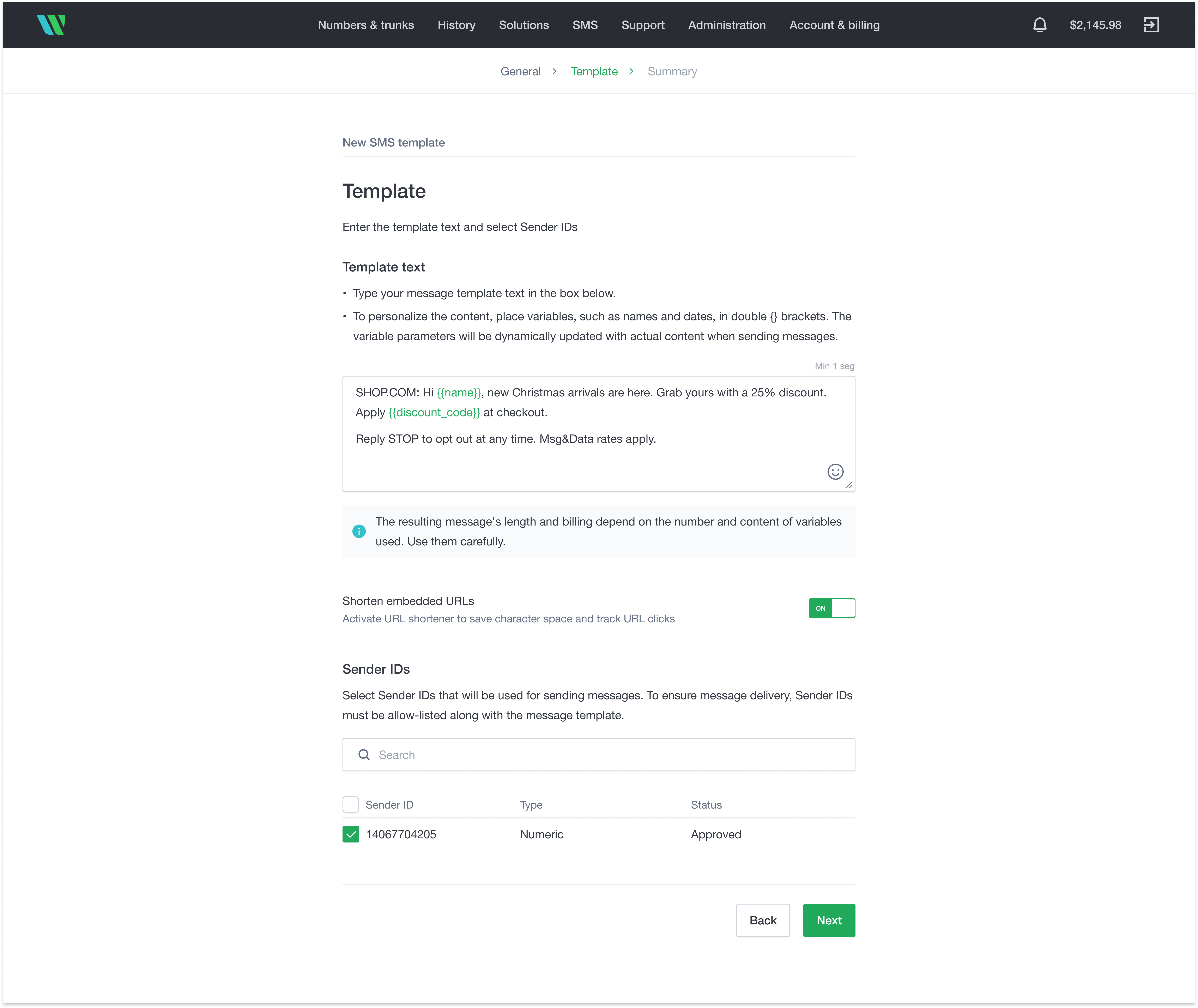
Template
- Enter the template text. To personalize the message, add variables in double curly brackets, such as
{{name}}. Each variable name must be unique. - If the text includes links, turn on Shorten embedded URLs to save characters and track link clicks.
- Select the Sender IDs to use with this template.
3
Summary
Check the template details. To change them, select Back. To submit the template for review, select Create. You can’t change a template after you submit it.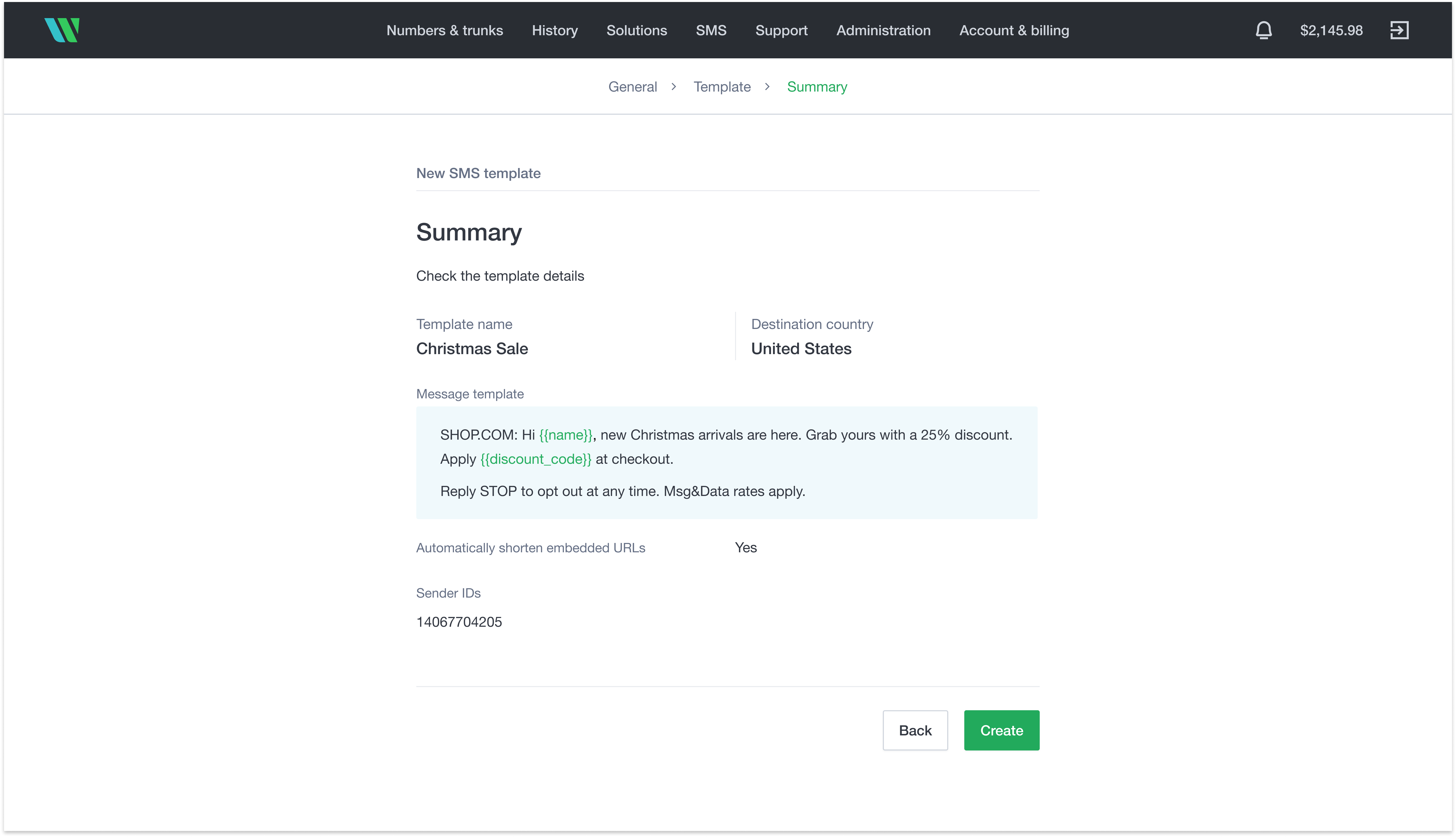
Step 2: Prepare your contacts file
Create a CSV file without a header row. Put the phone numbers in the first column and the values for your template variables in the next columns. All numbers must be from the template’s destination country.Step 3: Create the broadcast
- In the Wavix portal, go to Solutions → Broadcasts.
- On the Campaigns tab, select Create new.
- If WhatsApp is also on for your account, select SMS, then Continue.
1
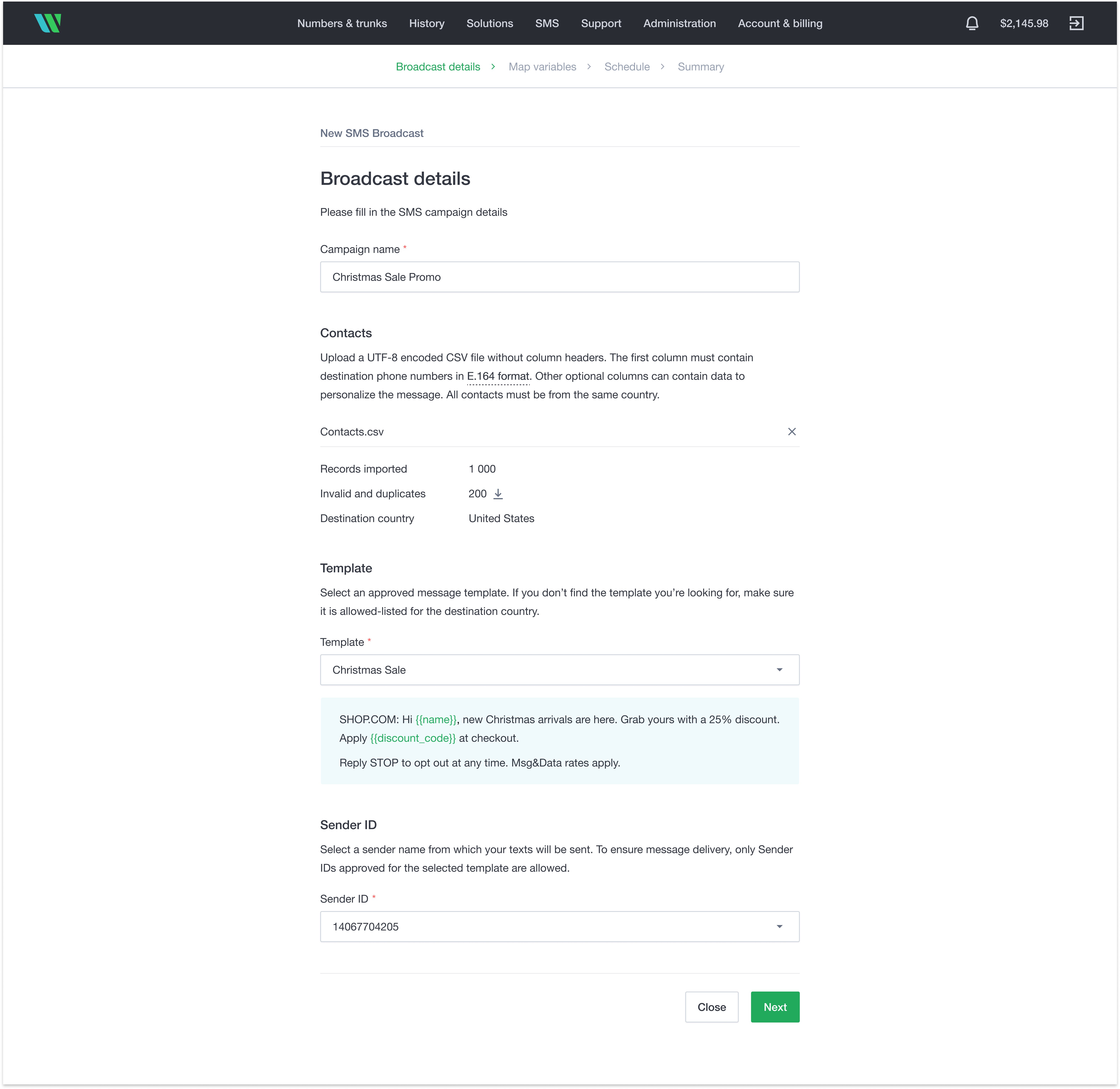
Broadcast details
- Enter a campaign name. Use letters, digits, and spaces only.
- Upload your contacts file. The Wavix portal shows how many contacts it imported, how many rows it left out, and the destination country. To see the rows it left out, select the download icon.
- Select an approved template for the destination country.
- Select a Sender ID. Only Sender IDs approved for the template appear.
2
Map variables
Map each template variable to a column in your contacts file. Each variable needs its own column. The Preview column shows the value from the first row.The Wavix portal skips this step if the template has no variables.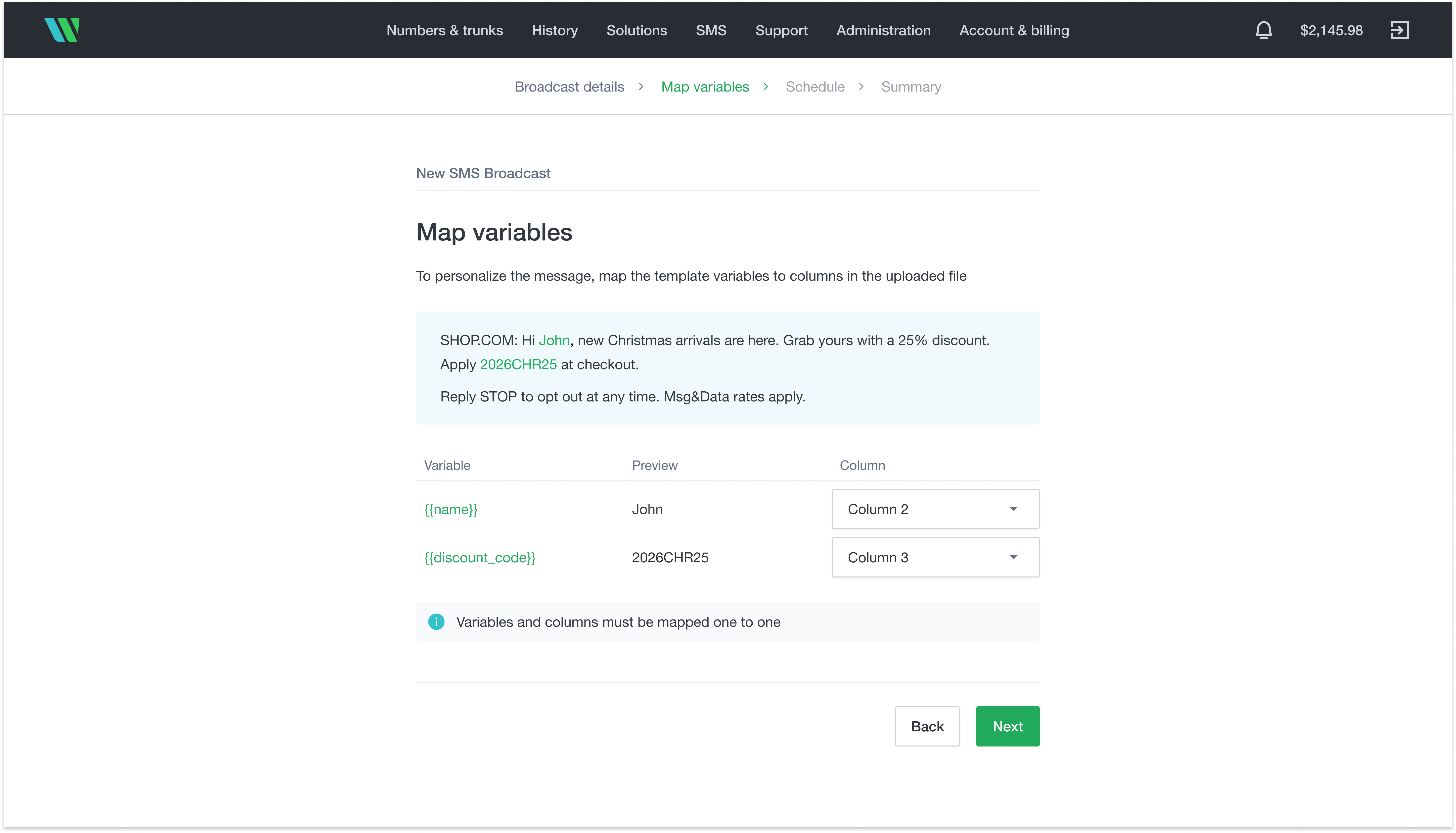
3
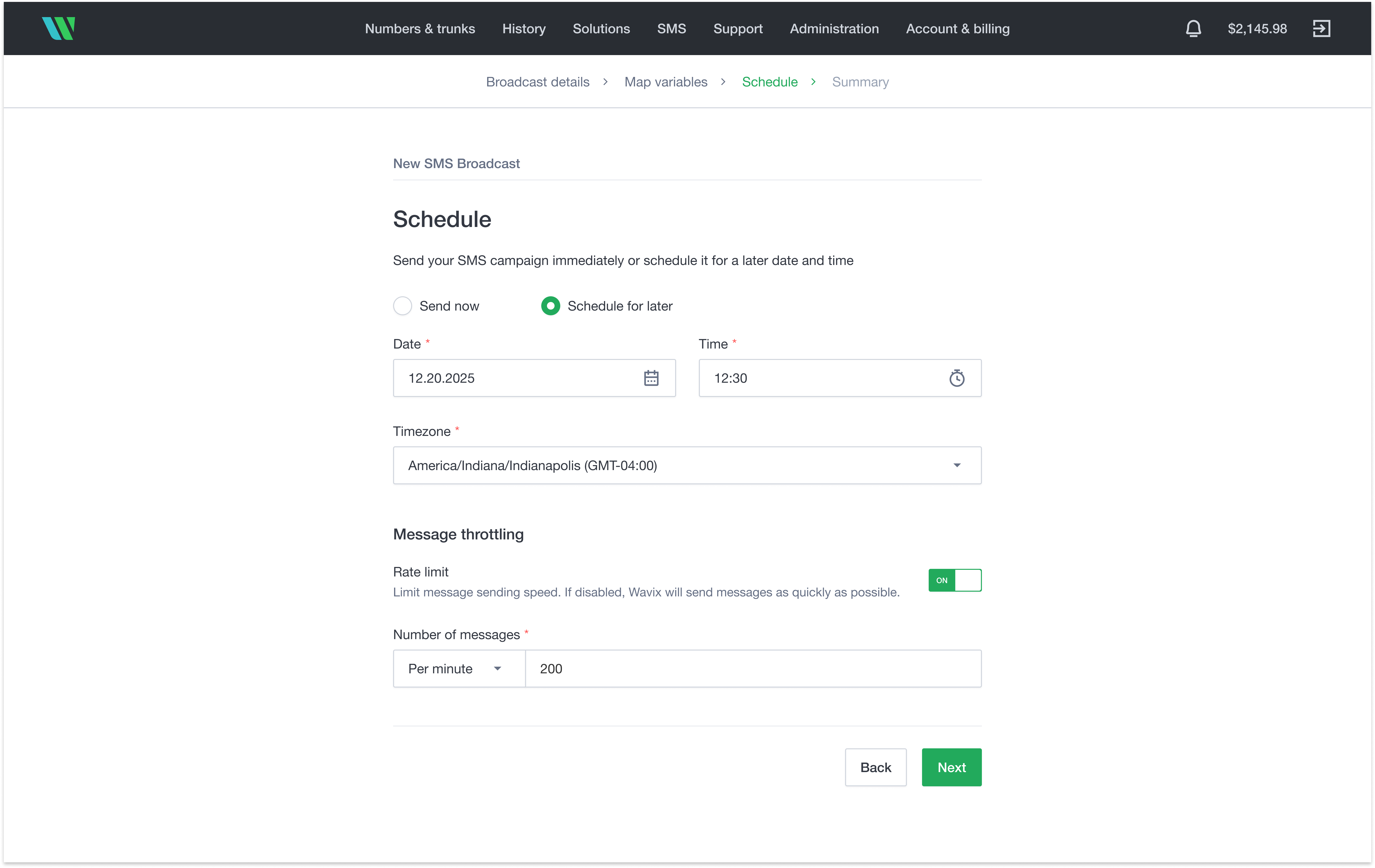
Schedule
- Select Send now, or select Schedule for later and set the date, time, and time zone.
- To control how fast the broadcast sends, turn on Rate limit, then select Per minute, Per hour, or Per day and enter the maximum number of messages, from 1 to 999. With the rate limit off, we send the messages as fast as possible.
4
Summary
Check the broadcast details. To change them, select Back. To create the broadcast, select Create.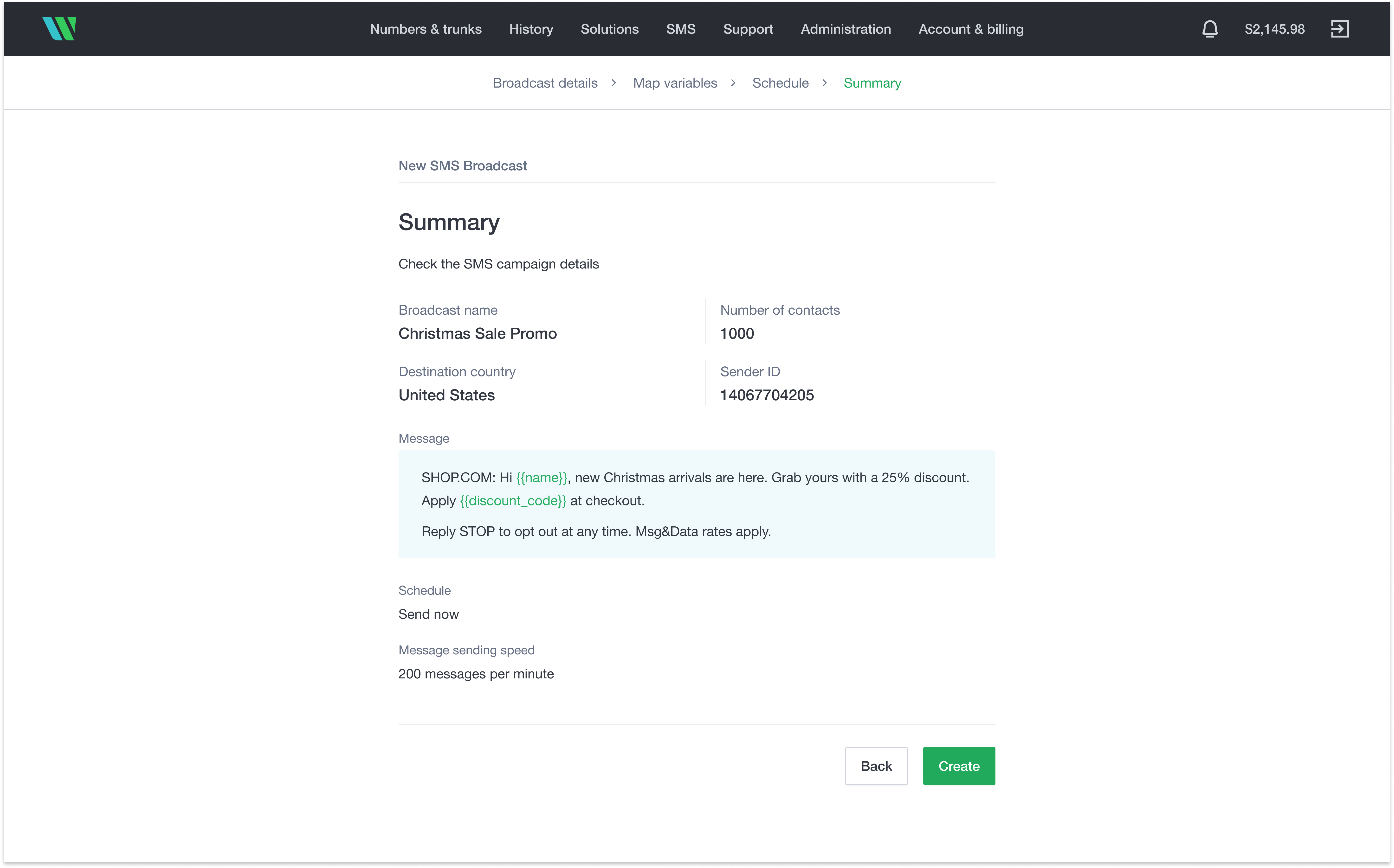
Step 4: Track the results
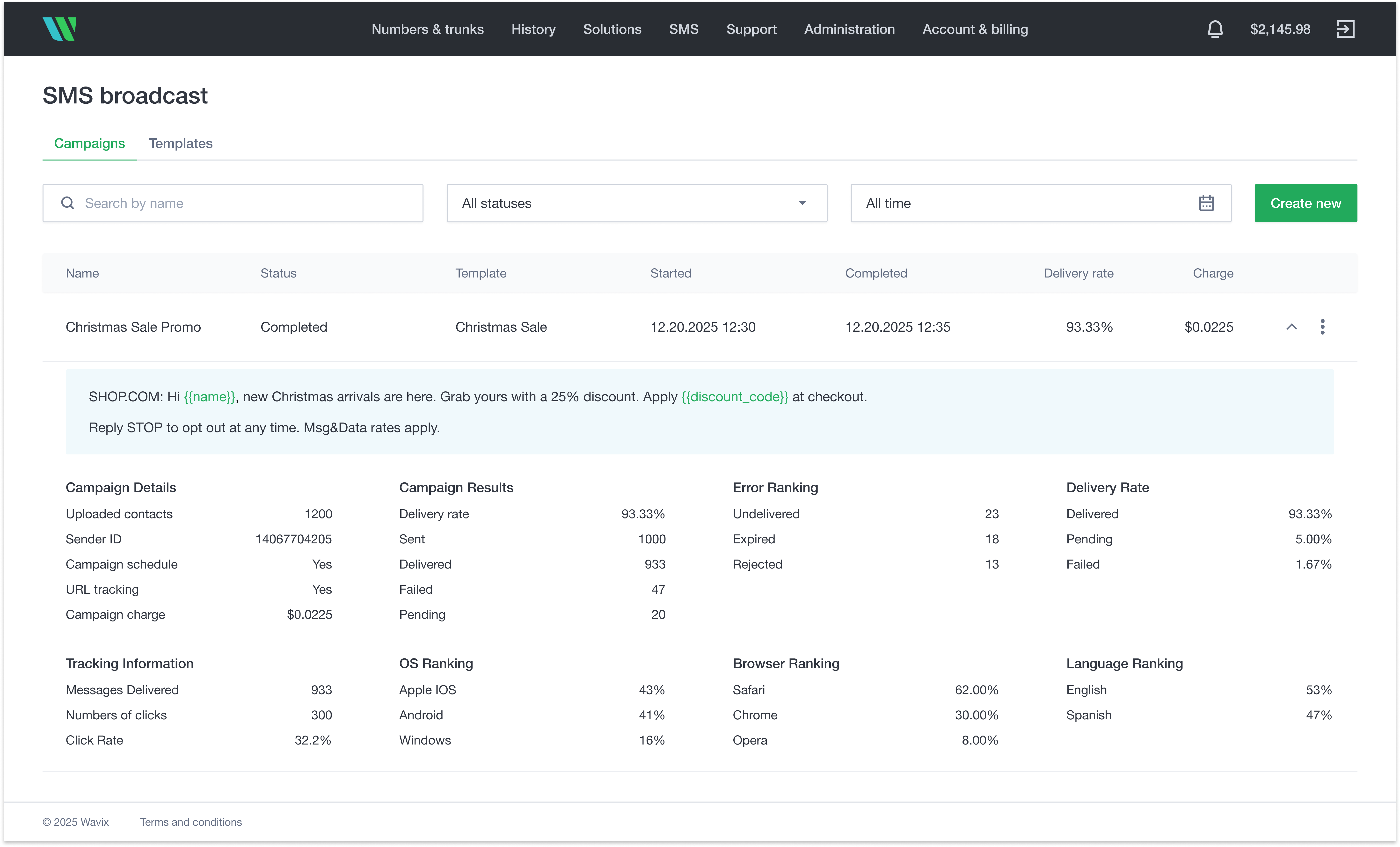
On the Campaigns tab, select a broadcast to expand it. You see:- Campaign Details: contacts, Sender ID, schedule, link tracking, and charge.
- Campaign Results: messages sent, delivered, failed, and pending, and the delivery rate.
- Error Ranking: undelivered, expired, and rejected messages.
- Tracking Information, if you shortened links: clicks, click rate, and the operating systems, browsers, and languages of the contacts who clicked.
Change a broadcast
Select the menu at the end of the broadcast’s row:- Edit: change the schedule and the sending speed of a scheduled broadcast.
- Pause and Resume: stop an active broadcast and continue it later.
- Cancel: stop the broadcast. Contacts that haven’t received the message don’t get it.
Tips
- Keep messages short. Each variable can add characters and, with them, segments.
- Avoid all caps and repeated punctuation, which carriers can filter as spam.
- Include opt-out instructions where local rules require them, such as “Reply STOP to opt out.”
Next steps
You created an SMS template, sent it to a list of contacts, and checked the delivery and link results.- If messages fail, find the cause in SMS troubleshooting.
- To reach the same contacts on WhatsApp, send a WhatsApp broadcast.