

WhatsApp is in preview. Features, limits, and the WhatsApp API can change before general availability.
Prerequisites
- WhatsApp on for your Wavix account, with WhatsApp broadcasts turned on. To get WhatsApp, request WhatsApp access. To turn on broadcasts, contact our support team.
- A connected WhatsApp sender.
- A template that Meta approved for that sender. For template categories and review, see WhatsApp concepts.
- A contacts file in the format described in Contacts file.
- Opt-in from every contact on the list. Meta requires it, and messages that contacts don’t expect lower your sender’s quality rating.
Check your messaging limit first
Your sender’s messaging limit sets how many customers it can start conversations with in a rolling 24-hour period. Broadcast doesn’t split your list to fit the limit. Keep the number of contacts within the limit, or split the list into several broadcasts on different days. To check the limit, open your sender on the WhatsApp page of the Wavix portal.Step 1: Start a WhatsApp broadcast
- In the Wavix portal, go to Solutions → Broadcasts.
- On the Campaigns tab, select Create new.
- If SMS is also on for your account, select WhatsApp, then Continue.
Step 2: Enter the broadcast details
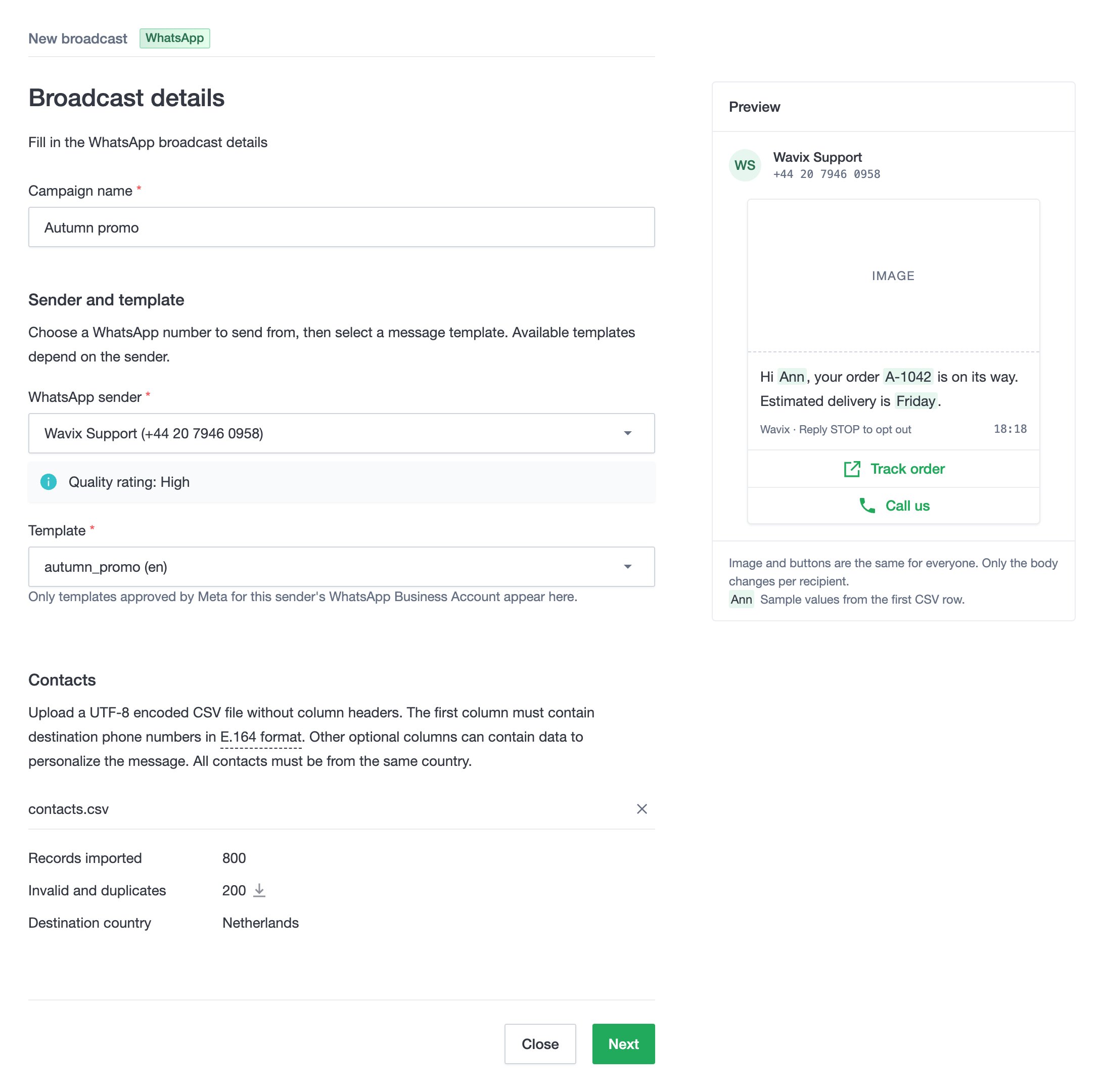
- Enter a campaign name.
- In WhatsApp sender, select the number to send from. The Wavix portal shows the sender’s quality rating.
- In Template, select an approved template. Only templates that Meta approved for the sender’s WhatsApp Business Account appear.
- In Contacts, upload your contacts file. The Wavix portal shows how many contacts it imported, how many rows it left out, and the destination country. To see the rows it left out, select the download icon.
{{first_name}}, or with more than 50 parameters in the body. The Wavix portal tells you when you select one. Use a template with numbered parameters, such as {{1}}. Carousel templates aren’t supported.
Step 3: Set up the message
The Wavix portal skips this step if the template has no variables, no header, and no buttons to set up.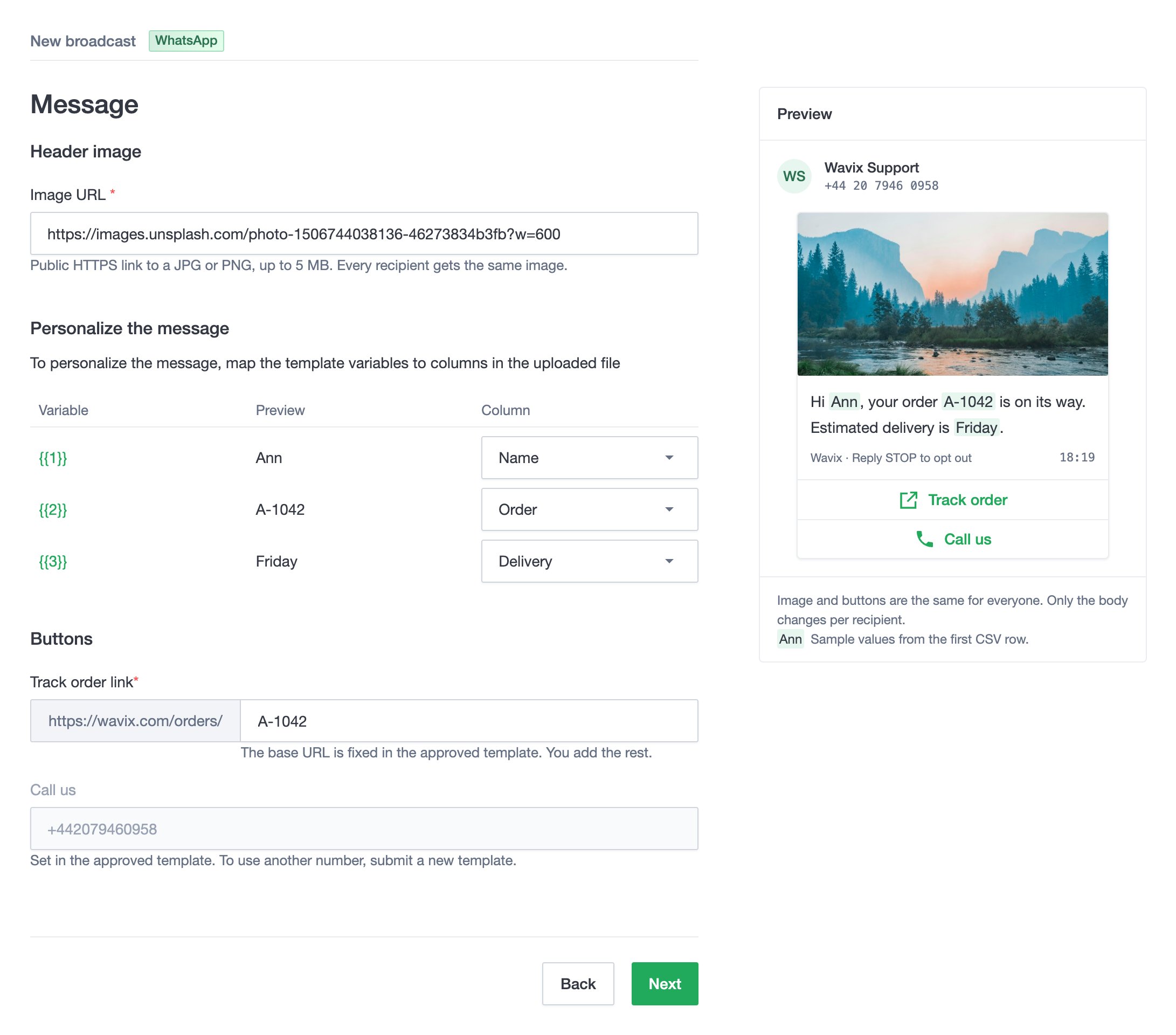
-
Header: if the template has a media header, enter a public HTTPS link to the file. Every contact gets the same file.
For a location header, enter the latitude and longitude in decimal degrees. For a text header with a variable, enter the text.
- Personalize the message: map each variable in the message body to a column in your contacts file. Each variable needs its own column.
- Buttons: for a link button, enter the end of the link. The start of the link is fixed in the template, and every contact gets the same link. For a copy code button, enter the code. Phone number buttons use the number in the template.
Step 4: Schedule the broadcast
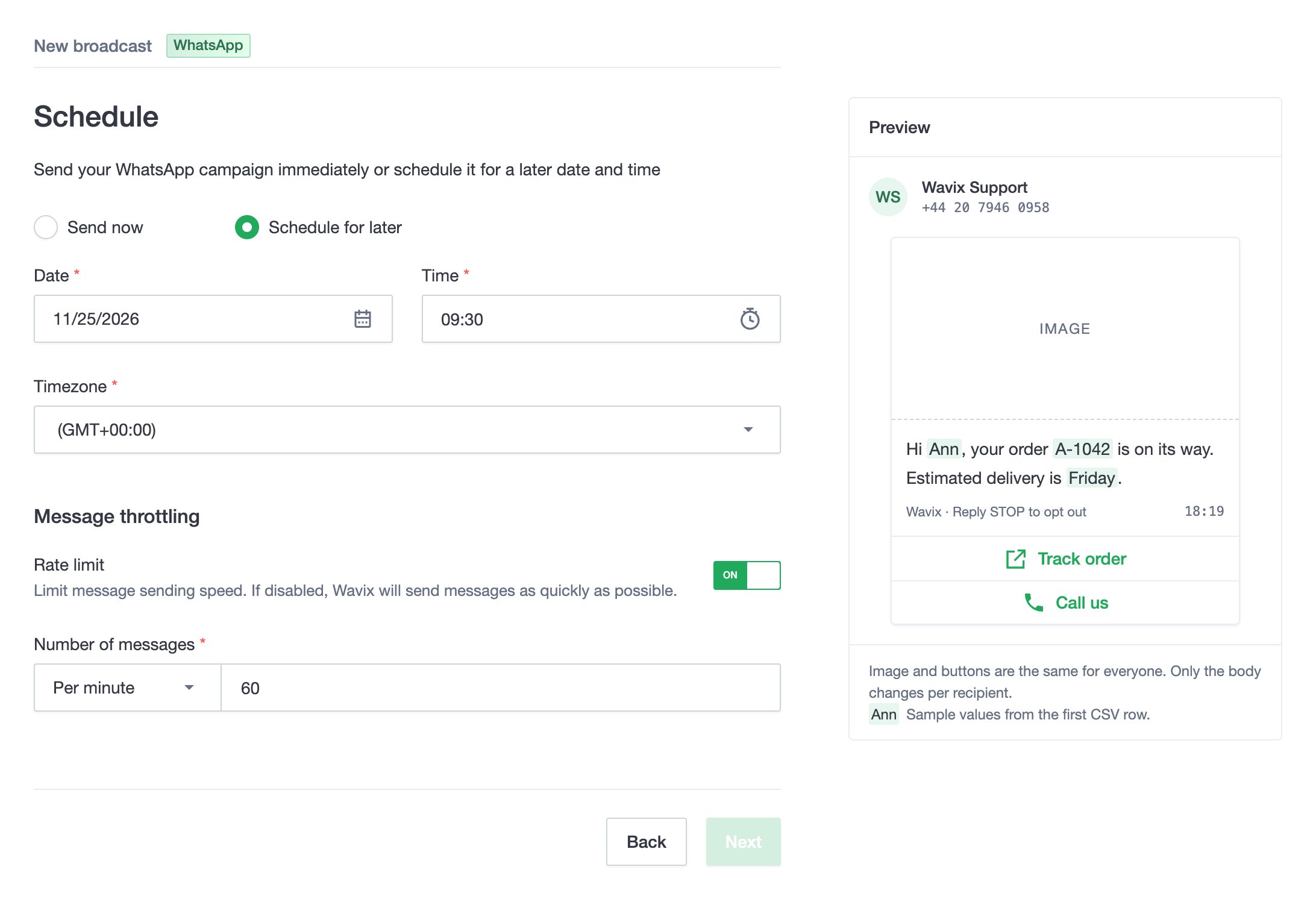
- Select Send now, or select Schedule for later and set the date, time, and time zone. To send now, your Wavix account needs a time zone in its settings.
- To control how fast the broadcast sends, turn on Rate limit, then select Per minute, Per hour, or Per day and enter the maximum number of messages, from 1 to 999. With the rate limit off, the broadcast sends as fast as your sender allows.
Step 5: Send a test and create the broadcast
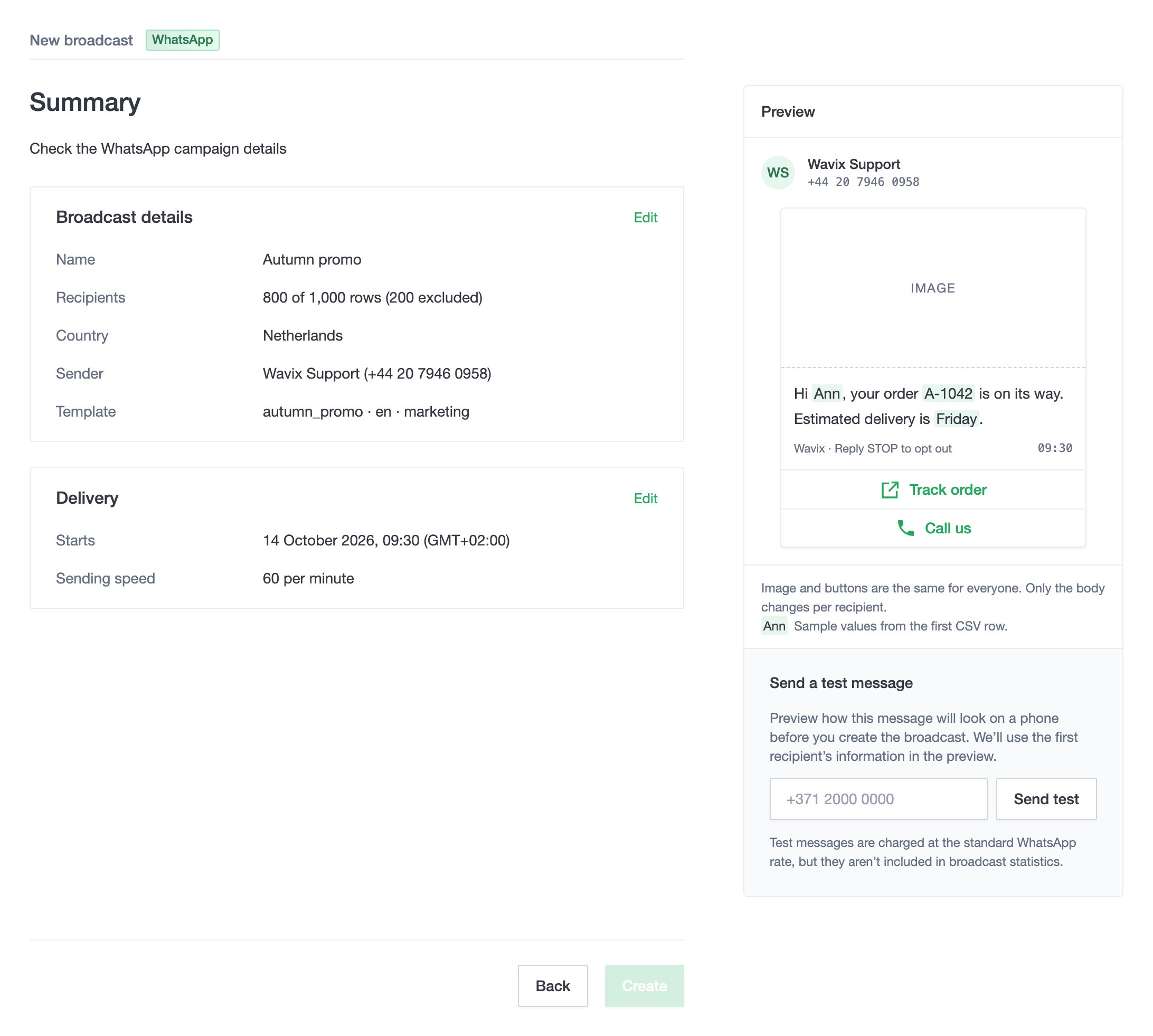
- Check the broadcast details. To change them, select Edit next to a section.
- In Send a test message, enter your own WhatsApp number in international format, then select Send test. The test uses the values from the first row of your contacts file. We charge test messages at the standard WhatsApp rate, and they don’t count in the broadcast results.
- Check the test message on your phone. Then select Create.
Step 6: Follow the broadcast
On the Campaigns tab, select the broadcast to expand it. You see the number of contacts, the sender, the country, the schedule, and the sending speed. A broadcast is Completed when it sent the message to every contact, not when every message is delivered. To follow the delivery of each message, go to History → WhatsApp in the Wavix portal.Change a broadcast
Select the menu at the end of the broadcast’s row:- Pause and Resume: stop an active broadcast and continue it later with the contacts that haven’t received the message.
- Cancel: stop the broadcast. Contacts that haven’t received the message don’t get it.
Why a broadcast stops
We cancel a broadcast and send nothing more when:- Meta no longer approves the template, for example because Meta paused or disabled it.
- WhatsApp broadcasts are turned off for your account.
- More than half of the contacts can’t receive the message, for example because their rows lack the data for the template variables.
Next steps
You sent an approved WhatsApp template to a list of contacts, with a test message first.- If messages fail, find the cause in WhatsApp troubleshooting.
- To send WhatsApp messages from your application, use the WhatsApp API.