

Prerequisites
Before you begin, ensure you have:- An active phone number in your Wavix account. If you need to purchase one, see our guide on how to buy a phone number.
- A Wavix SIP trunk (How to create a SIP trunk).
- An active Retell AI account.
How it works
Inbound calls
- A customer calls your Wavix phone number.
- Wavix routes the call via SIP to your Retell AI voice agent.
- Retell AI voice agent processes the audio and generates responses.
- Responses are streamed back into the call through Wavix.
Outbound calls
- Your application or Retell AI dashboard triggers a call.
- Retell AI connects to Wavix via SIP.
- Wavix connects the call to your customer via the telephony network.
- The customer answers the call.
- Retell AI voice agent processes the audio and generates responses.
- Responses are streamed back into the call.
Receive calls with Wavix and Retell AI
Import a number into Retell AI
- Retell AI dashboard
- API
- Sign in to your Retell AI account.
- In the left-hand menu, select Phone Numbers.
- Select the + button and choose Connect to your number via SIP trunking.

-
Enter the imported Wavix number details:
- Phone Number: A Wavix phone number in your account.
- Termination URI: Use
us.wavix.netto ensure the lowest audio latency. - SIP Trunk User Name: Enter the SIP trunk ID from your Wavix account.
- SIP Trunk Password: Your Wavix SIP trunk password.
- Outbound Transport: Use TCP.
- Select Save.
Create a Retell AI voice agent
- In your Retell AI dashboard, open the left-hand menu and select Agents.
- In the top-right corner, select Create an Agent and choose Voice Agent.
- Select an Agent Type and use one of Retell AI’s templates or build a new agent from scratch.
- Once finished, publish your agent:
- Give your agent a descriptive name.
- (Optionally) Provide information about what your agent does.
- Associate it with an imported phone number.
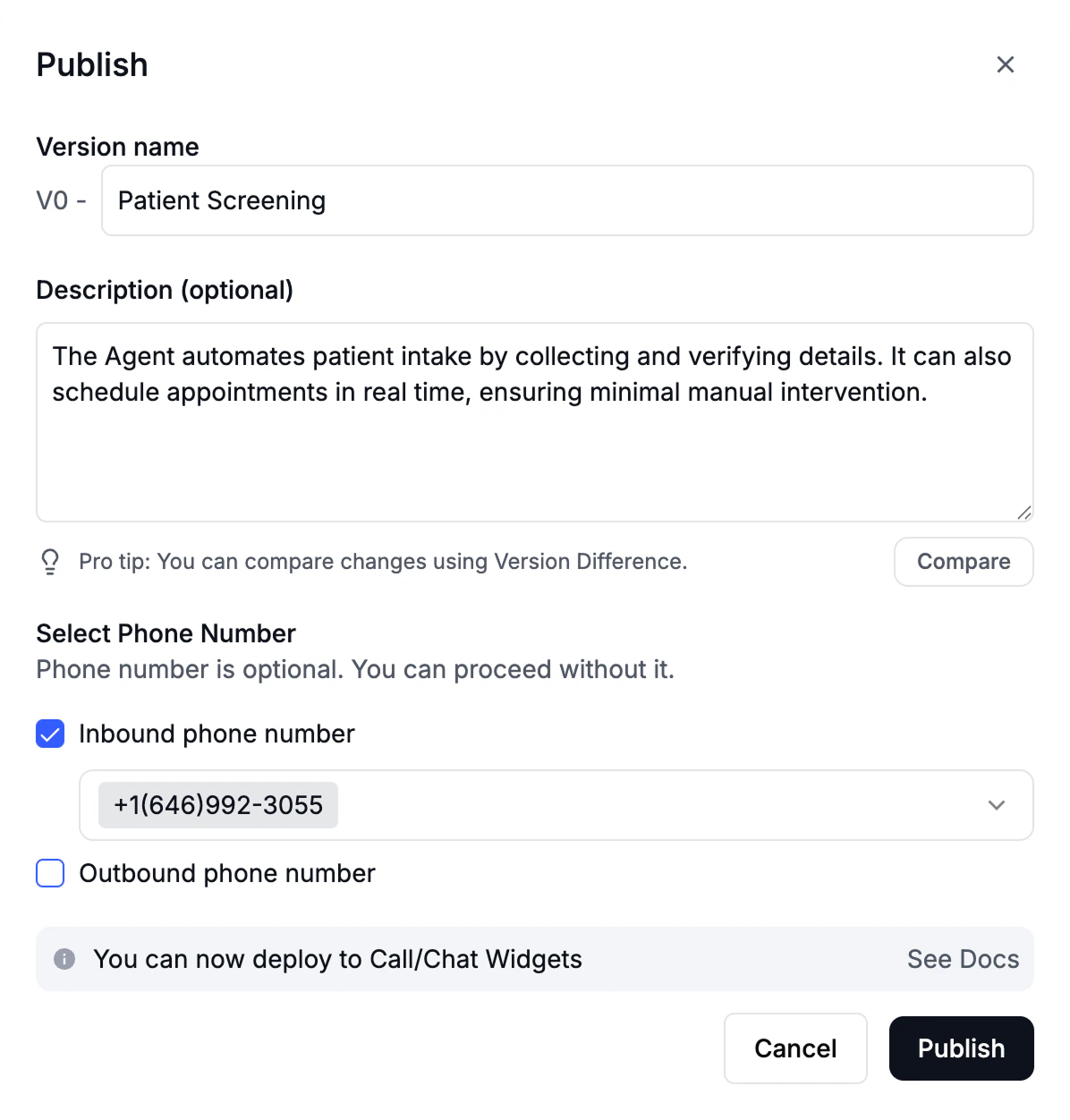
- Select Publish.
Configure your Wavix number
To route inbound calls to your Retell AI agent:- In the Wavix portal, open Numbers & trunks → My numbers.
- Select your number by clicking the ⋯ menu → Edit number.
- Set the inbound call destination type to SIP URI, and enter the destination:
- Select Save to apply changes. Wavix will automatically replace
[did]with your actual number.
Verify the configuration
Place a test call to the Wavix number. You’ll be connected to your agent shortly.Place calls with Wavix and Retell AI
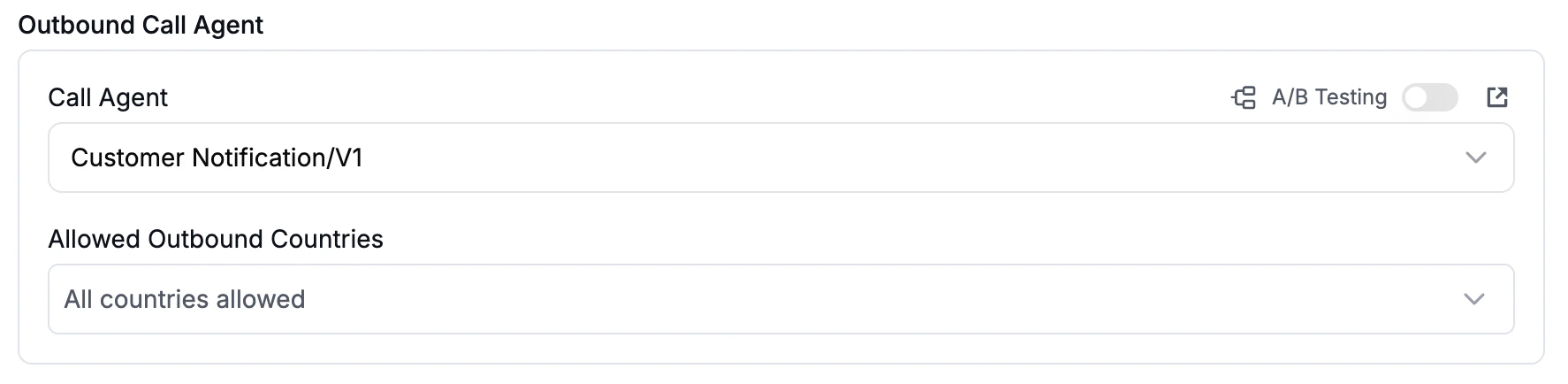
Before placing an outbound call, make sure:- An Outbound Call Agent is assigned to the number.
- The country you plan to call is listed in Allowed Outbound Countries or all countries are allowed.
- Dashboard
- API
- Batch Call tool
Place a call using the dashboard
In the Retell AI dashboard:- In the left-hand menu, select Phone Numbers.
- Choose the imported Wavix number.
- In the top-right corner, select Make an outbound call:
- Phone Number: Enter the number you want to call.
- Dynamic Variables: Provide dynamic variables to prepopulate in your assistant.
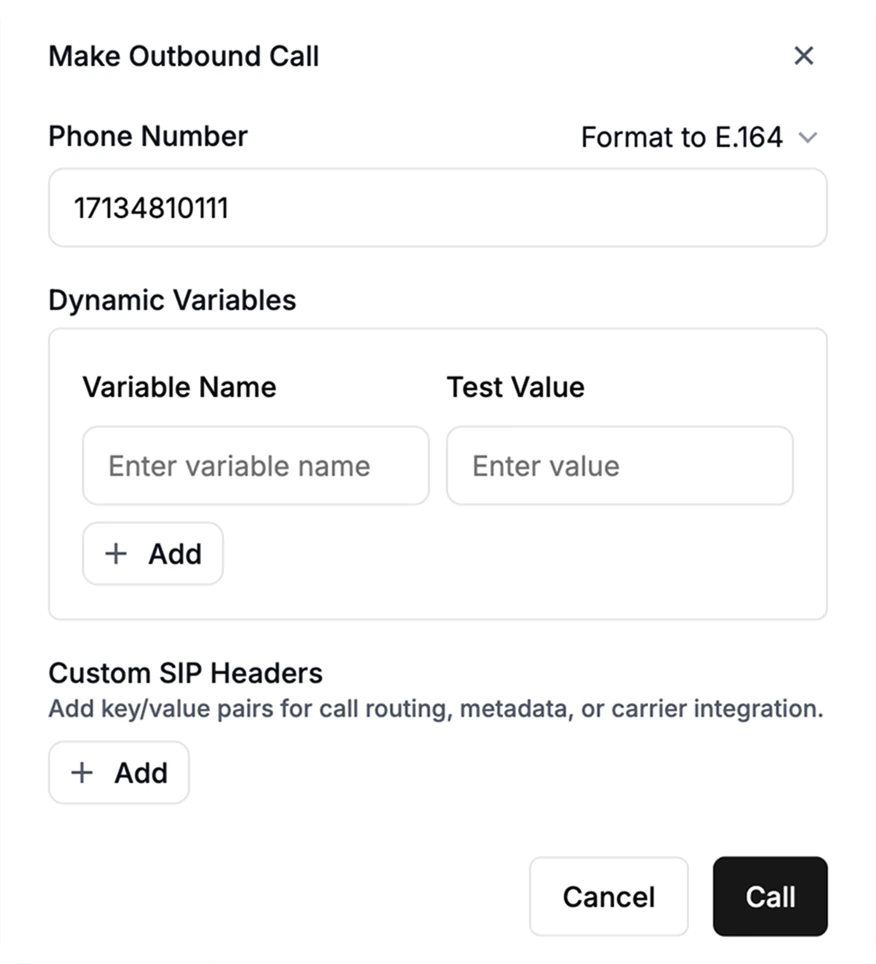
- Select Call.
Place a call using API
To make a call using the API, you’ll need a Retell AI API key:- Navigate to Settings and select API Keys.
- Copy your API key.
You may need to create a new API Key first.
- Run the POST request below using your favorite tool, such as Postman or terminal.
from_number: Originating number, the Wavix number imported to Retell AI.to_number: Destination number you want to call.
Retell AI lets you override the default agent bound to the originating number and pass optional dynamic variables to the Response Engine.
Check the Retell AI API documentation for more details.
Batch Call tool
Batch calls let you create, schedule, and monitor calls in bulk. To place calls using Retell AI Batch Call:- In the Retell AI dashboard, navigate to Batch call and select Create a batch call.
- Give your campaign a name and select an imported Wavix number.
- Upload a list of contacts.
- (Optionally) Schedule your campaign.
- Select Send to launch the campaign.
Make sure your Retell AI allowed CPS (calls per second) does not exceed your Wavix account limit:
- Find your Retell AI CPS (calls per second) in the account settings
- Wavix allows 3 CPS by default. To increase this limit, contact support@wavix.com
Send a call follow-up SMS
You can let a Retell AI voice agent send an SMS after a call when the caller asks for a written follow-up. For example, after a scheduling call, the agent can send an appointment confirmation, reference number, or support link to the same phone number that joined the call. Before you enable SMS follow-ups:- Register the SMS Sender ID you want to use. For setup instructions, see Sender ID registration.
- Create a dedicated Wavix API key with only the scopes required to send SMS.
- Confirm that the caller has agreed to receive the follow-up SMS.
- Keep the SMS content short and include opt-out text when required by your destination country or messaging use case.
Connect the Wavix MCP server to Retell AI
The Wavix MCP server exposes Wavix messaging tools, includingsms_and_mms_messages_send, to your Retell AI agent. Retell AI supports MCP through an MCP node in a conversation flow.
- Retell AI dashboard
- API
- In the Retell AI dashboard, open the conversation flow used by your voice agent.
- Add an MCP node to the point in the flow where the agent should send the follow-up SMS.
-
Add an MCP server with the Wavix MCP server URL:
-
Add a custom request header for Wavix MCP authentication:
- Header name:
Authorization - Header value:
Bearer YOUR_WAVIX_API_KEY
- Header name:
-
Select the
sms_and_mms_messages_sendMCP tool. -
Configure the tool input:
from: Your registered Sender ID.to:{{follow_up_number}}.message_body.text: The follow-up text the caller requested.
- Save the MCP node and publish the updated agent version.
Capture the caller number
Retell AI stores the customer phone number differently depending on call direction:- For inbound calls, the caller number is
from_number. - For outbound calls, the customer number is
to_number.
follow_up_number, for the SMS recipient:
- For inbound calls, set
follow_up_numberto the inboundfrom_number. - For outbound calls, set
follow_up_numberto the outboundto_number.
{{follow_up_number}} as the to value in the Wavix MCP tool.
For example, update the agent prompt or flow instructions:
Security requirements
- Use a Wavix API key scoped only to messaging. Don’t use a full-access account key.
- Store API keys only in Retell AI MCP server headers or another protected secret store. Don’t put keys in prompts, dynamic variables, or public URLs.
- Require caller consent before sending an SMS. The agent should not send follow-ups automatically for every call.
- Use API key scopes to limit the Wavix MCP tools available to the agent.
- Don’t send one-time passwords, payment details, health information, or other sensitive data in a follow-up SMS.
- Follow destination-country SMS rules, including Sender ID registration, opt-out language, and message content restrictions.
- Review Retell AI data storage settings if you redact Caller IDs or dynamic variables. If
phone_numberis redacted, Retell AI removes the customer number from the call record. - Monitor Wavix message delivery reports and Retell AI function or MCP node logs during rollout.
Call transfer
Wavix supports using theSIP REFER command.
To transfer a call, you need two Wavix numbers, one for an active call and one to receive the transferred call. Make sure inbound call routing is set up on the second number.
To enable call transfers with Retell AI:
- In your Retell AI dashboard, select the agent you want to enable this functionality for.
- Under Functions, click Add and choose Call Transfer.
- Set the Transfer to to Static Destination and enter a SIP URI to transfer the call to in the following format:
sip:[YOUR_WAVIX_NUMBER]@us.wavix.net. Example:sip:14062260605@us.wavix.net. - Make sure to select Keep raw input.
- Select Cold Transfer under How should the AI handle the transfer?.
- Select SIP REFER as the SIP Transfer Method.
- Select Save.
If you need to use Dynamic Routing for call transfer, make sure the transfer destination(s) are provided in the
sip:[YOUR_WAVIX_NUMBER]@us.wavix.net format .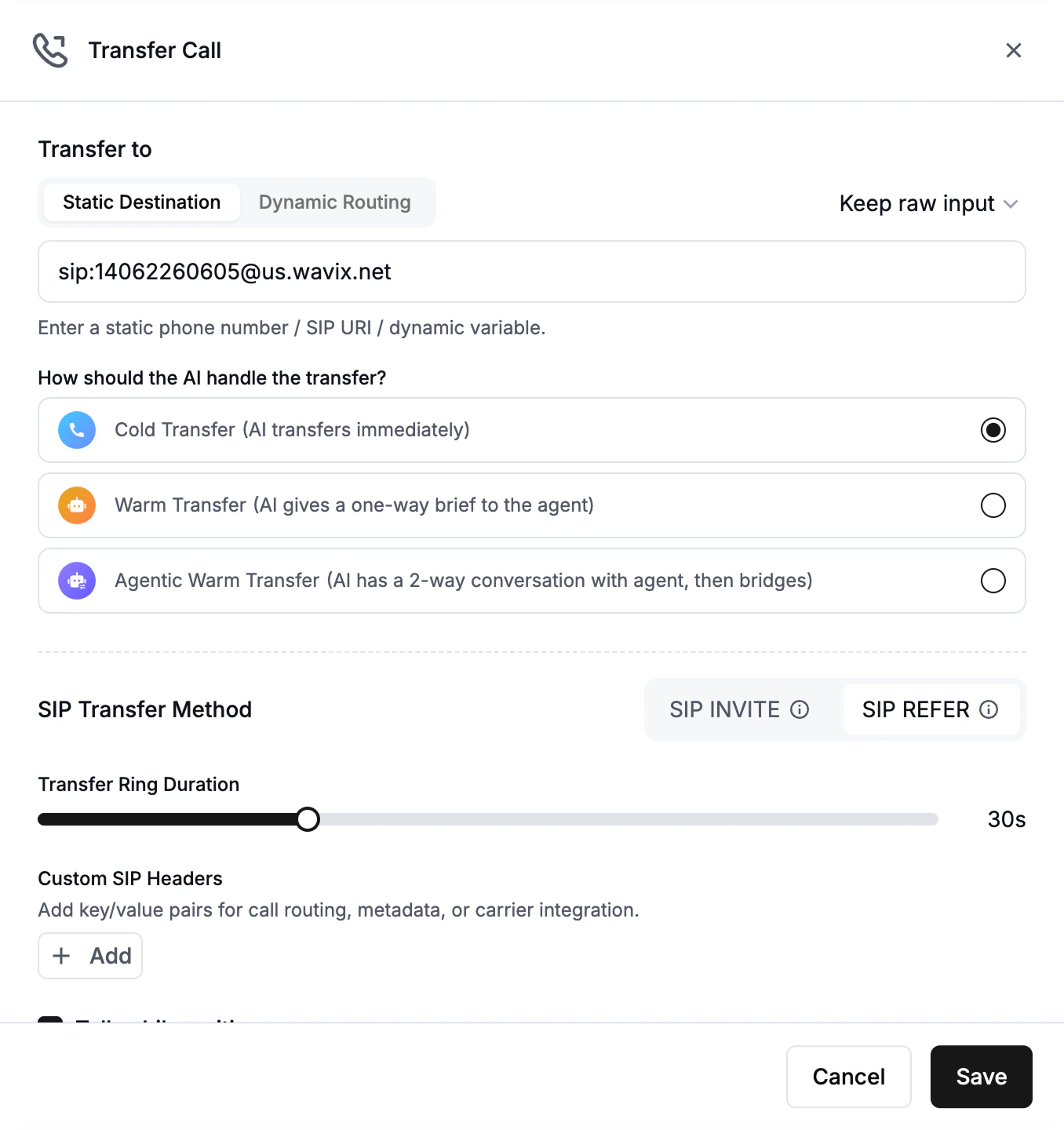
Update the agent’s prompt to include the transfer call conditions.
Troubleshooting
If your call doesn’t go through, check the following: Outbound calls fail to connect- Validate that the destination number is in E.164 format (e.g.,
+14155552671). - Confirm the destination country is listed under Allowed Outbound Countries in Retell AI’s phone number settings.
- Verify your Wavix account has sufficient balance for the outbound call.
- Check that your Wavix CPS (calls per second) limit is not exceeded. By default, Wavix allows 3 CPS. Contact support@wavix.com to increase this limit.
- In the Wavix portal, verify that the inbound call destination for your number is correctly set to
[did]@sip.retellai.com;transport=tcp. - Confirm that an Inbound Call Agent is assigned to the number in Retell AI’s phone number settings.
- Check that your Retell AI agent is in Published status, not in draft mode.
- In the Wavix portal, navigate to Numbers & trunks → Trunks and verify the SIP trunk credentials.
- Confirm the SIP trunk ID and password match exactly what you entered in Retell AI’s phone number configuration. Credentials are case-sensitive.
- In your Retell AI dashboard, verify the agent is assigned to the imported phone number.
- Check that your agent’s LLM (language model) is properly configured and has the correct prompt.
- Test your agent directly from the Retell AI dashboard to ensure it responds correctly.
- Review Retell AI logs for any errors related to the agent’s LLM or TTS service.
- Verify the SIP Trunk User Name is your actual SIP trunk ID (not your Wavix account ID).
- Double-check the SIP Trunk Password has no extra spaces or special characters that might have been mistyped.