

Prerequisites
Before you begin, ensure you have:- An active phone number on your Wavix account. If you need to purchase one, see our guide on how to buy a phone number.
- An active ElevenLabs account with access to ElevenLabs Agents.
How it works
- A customer calls your Wavix phone number, or your ElevenLabs agent places an outbound call.
- Wavix and ElevenLabs exchange call signaling and audio over SIP.
- Your ElevenLabs agent processes the audio and generates spoken responses in real time.
Create a SIP trunk in Wavix
ElevenLabs authenticates outbound calls with your Wavix SIP trunk credentials using digest authentication.- Wavix portal
- API
- In the top menu, go to Numbers & trunks → Trunks.
- Click Create new.
- Under Authentication method, select Digest.
- Enter a SIP trunk name, set a SIP trunk password, and choose one of your account’s numbers as the Caller ID.
- Optionally, configure additional limits. If not specified, global account limits apply:
- Max outbound call duration.
- Max number of simultaneous calls via the SIP trunk.
- Max call cost.
- Click Create.
Your 5-digit SIP trunk username is generated automatically. In the Wavix portal, it’s displayed in the SIP trunk ID column on the Trunks page.
Import your number into ElevenLabs
- ElevenLabs dashboard
- API
- Sign in to your ElevenLabs account.
- In the ElevenLabs Agents dashboard, open the Phone Numbers section.
- Import a phone number from a SIP trunk.
- Enter your Wavix phone number in E.164 format with the leading
+sign, for example+61290597521, and assign a Label to it. ElevenLabs can’t import numbers without the leading+. - Leave the Inbound Configuration unchanged.
- In the Outbound Configuration section:
- In the Address field, enter
us.wavix.net, the recommended Wavix SIP gateway. ElevenLabs hosts its infrastructure in the US. - Set Transport Type to TCP.
- Keep Media Encryption set to Allowed.
- Under Authentication, enter your Wavix SIP trunk ID in the SIP Trunk Username field and your SIP trunk password in the SIP Trunk Password field.
- In the Address field, enter
- Click Import.
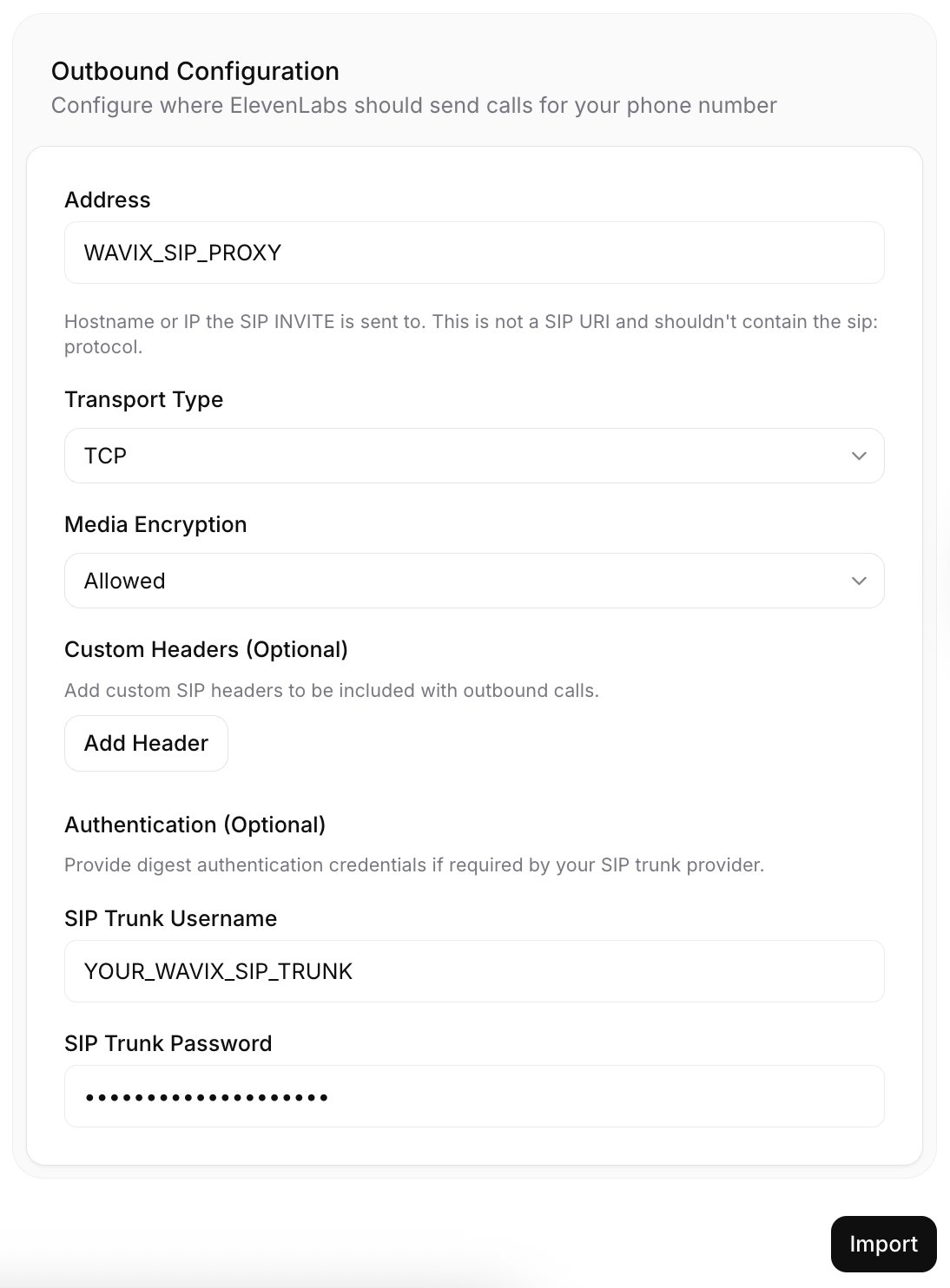
Optionally, you can encrypt call media on your Wavix numbers and SIP trunks:
- Contact support@wavix.com with a list of the numbers and trunks you want to encrypt media for.
- Wait for the Wavix Support team to confirm that encryption is active.
- After confirmation, set Media Encryption to Required in the Inbound Configuration and Outbound Configuration sections of the number in ElevenLabs.
To learn more about ElevenLabs SIP trunk configuration, see the ElevenLabs SIP trunking documentation.
Create an ElevenLabs agent
- Sign in to your ElevenLabs account.
- In the ElevenLabs Agents dashboard, open the Agents section.
- Create a new agent from a template or start from a blank one.
- Configure your agent: set the system prompt and first message, choose an LLM and spoken language, and select the ElevenLabs voice you want the agent to use.
For more information, see the ElevenLabs Agents quickstart. You can also create agents programmatically with the Create agent endpoint.
Assign the agent to your number
- ElevenLabs dashboard
- API
- In the Phone Numbers section, select your imported Wavix number.
- Click Assign Agent and select the agent you want to answer calls to this number.
Set up inbound call routing in Wavix
Wavix can route inbound calls to a SIP trunk on the platform, a SIP URI, or forward them to a phone number. ElevenLabs requires calls to be routed to a SIP URI.- Wavix portal
- API
- In Wavix, open Numbers & trunks → My numbers.
- Select your number by clicking the ⋯ menu → Edit number.
-
Set the inbound call destination type to SIP URI, and enter the destination. The port is required:
-
If media encryption is not enforced on your number:
-
If media encryption is enabled on your number:
-
If media encryption is not enforced on your number:
-
Save your changes. Wavix will automatically replace
[did]with your actual number.
Test your configuration
To test inbound calls, dial your Wavix number. You’ll be connected to your ElevenLabs agent shortly. To place an outbound test call:- ElevenLabs dashboard
- API
- In the ElevenLabs Agents dashboard, open the Phone Numbers section.
- Select the imported Wavix number.
- Select Outbound call.
- Select an agent and enter a destination phone number.
- Click Send Test Call.
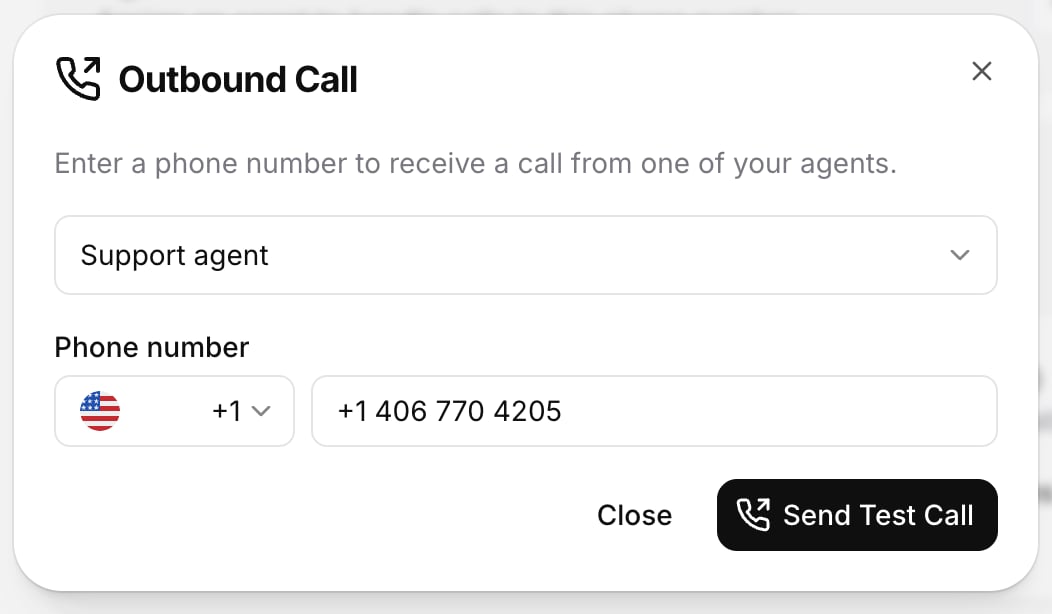
Send a call follow-up SMS
You can let an ElevenLabs agent send an SMS after a call when the caller asks for a written follow-up. For example, after a scheduling call, the agent can send an appointment confirmation, reference number, or support link to the same phone number that placed the call. Before you enable SMS follow-ups:- Register the SMS Sender ID you want to use. For setup instructions, see Sender ID registration.
- Create a dedicated Wavix API key with only the scopes required to send SMS.
- Confirm that the caller has agreed to receive the follow-up SMS.
- Keep the SMS content short and include opt-out text when required by your destination country or messaging use case.
Connect the Wavix MCP server to ElevenLabs
The Wavix MCP server exposes Wavix messaging tools, includingsms_and_mms_messages_send, to your ElevenLabs agent.
- ElevenLabs dashboard
- API
- In the ElevenLabs dashboard open Settings and add a new Auth Connection:
- Auth Type:
Bearer token - Name:
Wavix API - Authentication Token:
YOUR_WAVIX_API_KEY
- Auth Type:
- In the ElevenLabs Agent’s dashboard, open Tool, then open the MCP server integrations page.
- Select Add Custom MCP Server.
- Enter the following values:
- Name:
Wavix - Description:
Wavix MCP server - Server type:
Streamable HTTP - Server URL:
https://mcp.wavix.com/mcp - Authentication:
Wavix API - Tool Approval Mode: Leave recommended
Fine-Grained Tool Approval.
- Name:
- Leave custom HTTP headers empty unless your security policy requires additional headers.
- Select I trust this server, test the connection, and save the integration.
- Attach the Wavix MCP server to the ElevenLabs agent that handles calls.
- In the MCP tool approval settings, keep only the tools the agent needs. For follow-up SMS, enable
sms_and_mms_messages_send.
If you configure the MCP server through the API, store the Wavix API key as an ElevenLabs secret where possible instead of keeping it as a plain request header value.
Capture the caller number
ElevenLabs provides{{system__caller_id}} as an automatic dynamic variable for voice calls. Use this value as the SMS recipient when the agent calls the Wavix sms_and_mms_messages_send tool.
Configure the agent so it sends SMS only after explicit caller consent. In the agent prompt or tool configuration, use:
from: Your registered Sender ID.to:{{system__caller_id}}.message_body.text: The follow-up text the caller requested.
Security requirements
- Use a Wavix API key scoped only to messaging. Don’t use a full-access account key.
- Store API keys in ElevenLabs secrets or protected headers. Don’t put keys in prompts, first messages, or public URLs.
- Require caller consent before sending an SMS. The agent should not send follow-ups automatically for every call.
- Keep tool approvals restrictive. Start with approval required for
sms_and_mms_messages_send, then allow automatic execution only for that tool after testing. - Don’t send one-time passwords, payment details, health information, or other sensitive data in a follow-up SMS.
- Follow destination-country SMS rules, including Sender ID registration, opt-out language, and message content restrictions.
- Monitor Wavix message delivery reports and ElevenLabs tool execution logs during rollout.
Transfer a call
Wavix supports using theSIP REFER command. To transfer a call, you need two Wavix numbers, one for an active call and one to receive the transferred call. Make sure inbound call routing is set up on the second number.
To enable call transfers in ElevenLabs:
- In the ElevenLabs Agents dashboard, open the Agents section and select your agent.
- In the agent configuration, add the Transfer to number system tool.
- Add a transfer rule:
- Select SIP REFER as the Transfer type.
- Select Phone in the Number type dropdown menu.
- Enter the destination number to transfer active calls to.
- Specify the condition for the call transfer, for example “A caller wants to speak to a human agent.”
- Select Save.
SIP REFER transfers don’t support warm transfer messages. The call is transferred without speaking to the new recipient.
To learn more about ElevenLabs call transfers, see the Transfer to number documentation.
Troubleshooting
- 603 Declined can occur if the destination’s per‑minute rate is higher than your account’s Max call rate (check the value on the Trunks page). Contact support@wavix.com to request a change if needed.
- SIP trunk authentication errors. In the Wavix portal, go to Numbers & trunks → Trunks and verify that the SIP trunk ID and password match exactly what you entered in ElevenLabs. Credentials are case-sensitive.
- Wrong number format. Dial the full international E.164 number, e.g.
19085594899(US) or4408001218915(UK). Do not dial local formats like9085594899. Strip prefixes like0,00, or011before the dialed number. - Inbound calls not reaching the agent. Verify that the inbound call destination for your number is set to
[did]@sip.rtc.elevenlabs.io:5060;transport=tcp, or[did]@sip.rtc.elevenlabs.io:5061;transport=tlsif media encryption is enabled. The port is required. Also check that an agent is assigned to the imported number in ElevenLabs.